
Table of Contents
Introduction
Welcome back to Day 23 of this practical Linux challenge! Today, we are diving into one of the most useful Linux commands: tar.
When you think of archiving and backing up files, think of tar
What is the tar Command?
tar stands for Tape Archive. It is a powerful utility used to create, extract, compress, and archive files or directories into a single file, usually with .tar, .tar.gz, or .tgz extensions.
Core tar Commands
More commonly used tar command options are listed in the table below.
Real-World Scenario: tar Command
tar -cvf demologs.txt.tar
ls -lh # to confirm it compressed
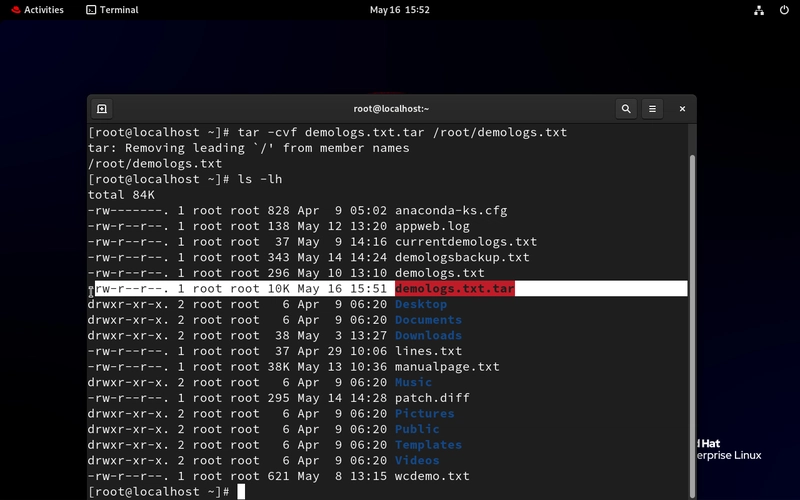
tar -tvf demologs.txt.tar

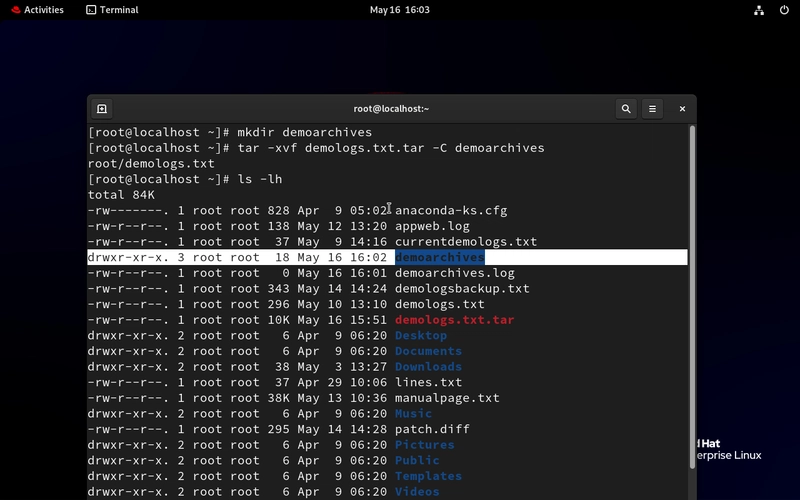
mkdir demoarchives - # we create a separate folder to move our archives
tar -xvf demologs.txt.tar.gz -C demoarchives - # restores the .tar to original file format
ls -lh # to confirm both the original and compressed file are there

Conclusion
By now, you have seen how to create, extract, compress, and manage archives with tar. You also understand the most useful options (-c, -x, -v, -f, -z, -t, --delete) and how to combine them based on what you are trying to achieve.
Keep experimenting in your terminal. Start by archiving test directories and extracting them to specific locations. The more hands-on you get, the more confident you will become. Stay curious. Stay hands-on.
If this is helpful to you, feel free to bookmark, comment, like and follow me for Day 24!
Let's Connect!
If you want to connect or share your journey, feel free to reach out on LinkedIn.
I am always happy to learn and build with others in the tech space.
#30DaysLinuxChallenge #Redhat#RHCSA #RHCE #CloudWhistler #Linux #Rhel #Ansible #Vim #CloudComputing #DevOps #LinuxAutomation #IaC #SysAdmin#CloudEngineer
More...
- Introduction
- What is the tar Command?
- Core tar Commands
- Real-World Scenario: tar Command
- Conclusion
- Let's Connect
Introduction
Welcome back to Day 23 of this practical Linux challenge! Today, we are diving into one of the most useful Linux commands: tar.
When you think of archiving and backing up files, think of tar
What is the tar Command?
tar stands for Tape Archive. It is a powerful utility used to create, extract, compress, and archive files or directories into a single file, usually with .tar, .tar.gz, or .tgz extensions.
Core tar Commands
More commonly used tar command options are listed in the table below.
| tar -cvf myarchive.tar myfolder/ | Creates an archive | -c = create, -v = show progress (verbose), -f = name the archive file |
| tar -xvf myarchive.tar | Extracts an archive | -x = extract files from the archive |
| tar -czvf myarchive.tar.gz myfolder/ | Creates a compressed archive using gzip | -z = compress with gzip |
| tar -xzvf myarchive.tar.gz | Extracts a .tar.gz archive | -x = extract, -z = unzip gzip file |
| tar -tvf myarchive.tar | Lists archive contents | -t = list files inside the archive |
| tar -xvf myarchive.tar file.txt | Extracts a specific file | Only pulls out file.txt from the archive |
| tar -C /target/folder -xvf myarchive.tar | Extracts to a specific directory | -C = change to target directory before extracting |
| tar --delete -f myarchive.tar file.txt | Deletes a file from the archive (non-compressed only) | Removes file.txt from the .tar file (Does not work on .tar.gz) |
Real-World Scenario: tar Command
- Select a file you wish to archive. Add .tar to the filename.
tar -cvf demologs.txt.tar
ls -lh # to confirm it compressed
- Verify the file is created
tar -tvf demologs.txt.tar
- Restore the tar file.
mkdir demoarchives - # we create a separate folder to move our archives
tar -xvf demologs.txt.tar.gz -C demoarchives - # restores the .tar to original file format
ls -lh # to confirm both the original and compressed file are there
Conclusion
By now, you have seen how to create, extract, compress, and manage archives with tar. You also understand the most useful options (-c, -x, -v, -f, -z, -t, --delete) and how to combine them based on what you are trying to achieve.
Keep experimenting in your terminal. Start by archiving test directories and extracting them to specific locations. The more hands-on you get, the more confident you will become. Stay curious. Stay hands-on.
If this is helpful to you, feel free to bookmark, comment, like and follow me for Day 24!
Let's Connect!
If you want to connect or share your journey, feel free to reach out on LinkedIn.
I am always happy to learn and build with others in the tech space.
#30DaysLinuxChallenge #Redhat#RHCSA #RHCE #CloudWhistler #Linux #Rhel #Ansible #Vim #CloudComputing #DevOps #LinuxAutomation #IaC #SysAdmin#CloudEngineer
More...