
Ever wanted to build your own platformer game in Go but didn’t know where to start? Today’s your lucky day.
While documentation and examples are helpful, nothing beats a hands-on tutorial that takes you from zero to a functioning game. As the creator of Bappa, I‘ve designed this guide to walk you through creating a basic 2D platformer with jumping mechanics, collisions, one-way platforms, and smooth animations — all using Go and the Bappa Framework.
This tutorial walks you through creating a 2D platformer from the ground up, covering:
Complete beginner to game development or Go? You can still follow along! The code examples are designed to work out-of-the-box, and I explain the core concepts as we go. If you get stuck, the companion repository has the complete code at each stage.
By the end of this guide, you’ll not only have a working game but also understand the fundamentals that make it tick. If you find this approach helpful, consider giving Bappa a star on GitHub to support its development.
You can also find the original blog here
Let’s start building!
Project Setup
Let's get started by setting up our project!
Although bappacreate is typically recommended for new projects, we'll start from the most basic repository to better understand the framework's fundamentals.
Initial Project Structure
Creating the Main File
First, create a new file named main.go with the following content:
// main.go
package main
import (
"embed"
"log"
"github.com/TheBitDrifter/coldbrew"
)
//go:embed assets/*
var assets embed.FS
const (
RESOLUTION_X = 640
RESOLUTION_Y = 360
MAX_SPRITES_CACHED = 100
MAX_SOUNDS_CACHED = 100
MAX_SCENES_CACHED = 12
)
func main() {
// Create the client
client := coldbrew.NewClient(
RESOLUTION_X,
RESOLUTION_Y,
MAX_SPRITES_CACHED,
MAX_SOUNDS_CACHED,
MAX_SCENES_CACHED,
assets,
)
// Configure client settings
client.SetTitle("Platformer")
client.SetResizable(true)
client.SetMinimumLoadTime(30)
// Run the client
if err := client.Start(); err != nil {
log.Fatal(err)
}
}
Installing Dependencies
Now that we have our main.go file, with the required imports, to install dependencies execute the following
from your project directory:
go get github.com/TheBitDrifter/coldbrew@latest
go mod tidy
Running the Game
To run your game, execute the following command from your project directory:
go run .
At this point, you'll see a blank window with the specified resolution. While not very exciting yet, this provides the foundation for our platformer. In the next section, we'll start adding game elements and bringing our world to life.
Creating Your First Scene
Let's create our first scene. Start by creating a scenes/ directory in your project root. We'll need two files to set up our scene structure:
Scene Structure Definition
First, let's create the base scene structure that we'll use throughout our game:
// scenes/scene.go
package scenes
import "github.com/TheBitDrifter/blueprint"
type Scene struct {
Name string
Plan blueprint.Plan
Width, Height int
}
Implementing Scene One
Next, let's create our first scene with a parallax background:
// scenes/scene_one.go
package scenes
import (
"github.com/TheBitDrifter/blueprint"
"github.com/TheBitDrifter/warehouse"
)
const SCENE_ONE_NAME = "scene one"
var SceneOne = Scene{
Name: SCENE_ONE_NAME,
Plan: sceneOnePlan,
Width: 1600,
Height: 500,
}
func sceneOnePlan(height, width int, sto warehouse.Storage) error {
err := blueprint.NewParallaxBackgroundBuilder(sto).
AddLayer("backgrounds/city/sky.png", 0.025, 0.025).
AddLayer("backgrounds/city/far.png", 0.025, 0.05).
AddLayer("backgrounds/city/mid.png", 0.1, 0.1).
AddLayer("backgrounds/city/near.png", 0.2, 0.2).
Build()
if err != nil {
return err
}
return nil
}
Understanding the Scene Structure
Let's break down what's happening in these files:
The sceneOnePlan function is particularly interesting - it's what Bappa calls a blueprint.Plan. This special function signature is expected by the client and gets called automatically when scenes become active. The plan function is where we define what should exist in our scene when it loads.
In this case, we're using the Blueprint API's ParallaxBackgroundBuilder to quickly create a multi-layered scrolling background. Each AddLayer call defines:
While there are more manual ways to create entities (which we'll explore later), the builder pattern used here provides a convenient shortcut for common setups.
Registering the Scene
Now that we have our scene defined, let's wire it up in our main file. We'll need to import our scenes package and the render systems from coldbrew:
// main.go
package main
import (
"embed"
"log"
"github.com/TheBitDrifter/coldbrew"
coldbrew_rendersystems "github.com/TheBitDrifter/coldbrew/rendersystems"
"platformer/scenes" // Import our scenes package
)
//go:embed assets/*
var assets embed.FS
const (
RESOLUTION_X = 640
RESOLUTION_Y = 360
MAX_SPRITES_CACHED = 100
MAX_SOUNDS_CACHED = 100
MAX_SCENES_CACHED = 12
)
func main() {
// Create the client
client := coldbrew.NewClient(
RESOLUTION_X,
RESOLUTION_Y,
MAX_SPRITES_CACHED,
MAX_SOUNDS_CACHED,
MAX_SCENES_CACHED,
assets,
)
// Configure client settings
client.SetTitle("Platformer")
client.SetResizable(true)
client.SetMinimumLoadTime(30)
// Register scene One
err := client.RegisterScene(
scenes.SceneOne.Name,
scenes.SceneOne.Width,
scenes.SceneOne.Height,
scenes.SceneOne.Plan,
[]coldbrew.RenderSystem{},
[]coldbrew.ClientSystem{},
[]blueprint.CoreSystem{},
)
if err != nil {
log.Fatal(err)
}
// Register global systems
client.RegisterGlobalRenderSystem(
coldbrew_rendersystems.GlobalRenderer{},
)
// Activate the camera
client.ActivateCamera()
// Run the client
if err := client.Start(); err != nil {
log.Fatal(err)
}
}
Note: For the coldbrew_rendersystems import you will likely need to run (again):
go mod tidy
When you run the game now, you should see your first scene with its background:
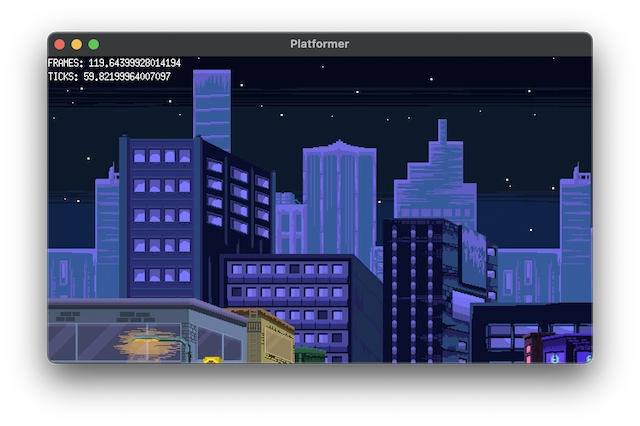
What's Happening Here?
We've made three crucial additions to get our scene running:
With these pieces in place, our game now has its first visual elements!
Adding the Player
Now that we have a basic scene, let's add a playable character. First, we'll set up animations for our character's different states.
Setting Up Animations
Create an /animations directory in the project root and add the following file:
// animations/animations.go
package animations
import (
blueprintclient "github.com/TheBitDrifter/blueprint/client"
"github.com/TheBitDrifter/blueprint/vector"
)
var IdleAnimation = blueprintclient.AnimationData{
Name: "idle",
RowIndex: 0,
FrameCount: 6,
FrameWidth: 144,
FrameHeight: 116,
Speed: 8,
}
var RunAnimation = blueprintclient.AnimationData{
Name: "run",
RowIndex: 1,
FrameCount: 8,
FrameWidth: 144,
FrameHeight: 116,
Speed: 5,
}
var JumpAnimation = blueprintclient.AnimationData{
Name: "jump",
RowIndex: 2,
FrameCount: 3,
FrameWidth: 144,
FrameHeight: 116,
Speed: 5,
Freeze: true,
PositionOffset: vector.Two{X: 0, Y: 10},
}
var FallAnimation = blueprintclient.AnimationData{
Name: "fall",
RowIndex: 3,
FrameCount: 3,
FrameWidth: 144,
FrameHeight: 116,
Speed: 5,
Freeze: true,
PositionOffset: vector.Two{X: 0, Y: 10},
}
Each animation is defined by several key properties:
Creating the Player Entity
Now let's add a helper function to create our player. Add this to your scenes file:
// scenes/scenes.go
import (
"platformer/animations"
"github.com/TheBitDrifter/blueprint"
"github.com/TheBitDrifter/blueprint/vector"
"github.com/TheBitDrifter/warehouse"
// New Imports:
blueprintclient "github.com/TheBitDrifter/blueprint/client"
blueprintinput "github.com/TheBitDrifter/blueprint/input"
blueprintmotion "github.com/TheBitDrifter/blueprint/motion"
blueprintspatial "github.com/TheBitDrifter/blueprint/spatial"
)
func NewPlayer(sto warehouse.Storage, x, y float64) error {
// Get or create the archetype
playerArchetype, err := sto.NewOrExistingArchetype(
blueprintspatial.Components.Position,
blueprintspatial.Components.Position,
blueprintspatial.Components.Shape,
blueprintspatial.Components.Direction,
blueprintmotion.Components.Dynamics,
blueprintinput.Components.InputBuffer,
blueprintclient.Components.CameraIndex,
blueprintclient.Components.SpriteBundle,
blueprintclient.Components.SoundBundle,
)
// Position state
playerPos := blueprintspatial.NewPosition(x, y)
// Hitbox state
playerHitbox := blueprintspatial.NewRectangle(18, 58)
// Physics state
playerDynamics := blueprintmotion.NewDynamics(10)
// Basic Direction State
playerDirection := blueprintspatial.NewDirectionRight()
// Input state
playerInputBuffer := blueprintinput.InputBuffer{ReceiverIndex: 0}
// Camera Reference
playerCameraIndex := blueprintclient.CameraIndex(0)
// Sprite Reference
playerSprites := blueprintclient.NewSpriteBundle().
AddSprite("characters/box_man_sheet.png", true).
WithAnimations(animations.IdleAnimation, animations.RunAnimation, animations.FallAnimation, animations.JumpAnimation).
SetActiveAnimation(animations.IdleAnimation).
WithOffset(vector.Two{X: -72, Y: -59}).
WithPriority(20)
// Generate the player
err = playerArchetype.Generate(1,
playerPos,
playerHitbox,
playerDynamics,
playerDirection,
playerInputBuffer,
playerCameraIndex,
playerSprites,
)
if err != nil {
return err
}
return nil
}
Note: You may see a compiler warning about copying the atomic playerSprites field. This warning can be safely ignored as the copy only occurs during entity template instantiation. The template object is temporary and only used to initialize the entity's components. Once created, all runtime access to the entity's state is done through pointers, maintaining proper atomic field semantics.
Understanding the Player Components
Bappa uses an Archetypal ECS approach, where entities are created from archetypes (groups of components). Let's examine some key components:
Adding the Player to Scene One
Finally, let's add the player to our scene:
// scenes/scene_one.go
func sceneOnePlan(height, width int, sto warehouse.Storage) error {
// ...Existing background code...
err = NewPlayer(sto, 100, 100)
if err != nil {
return err
}
return nil
}
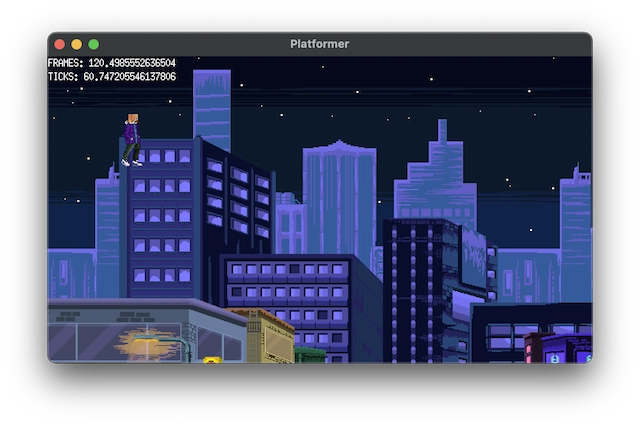
Now when you run the game, you'll see our character idling in the corner:
Adding Basic Movement
Before implementing our full platformer physics, let's start with some basic movement functionality. We'll need to set up input actions and create some systems to handle movement and physics.
Setting Up Input Actions
First, let's create our action definitions:
// actions/actions.go
package actions
import (
blueprintinput "github.com/TheBitDrifter/blueprint/input"
)
var (
Left = blueprintinput.NewInput()
Right = blueprintinput.NewInput()
Jump = blueprintinput.NewInput()
Down = blueprintinput.NewInput()
)
Mapping Keys to Actions
Now we'll update our main file to map keyboard keys to our actions:
// main.go
package main
import (
// New Import:
coldbrew_clientsystems "github.com/TheBitDrifter/coldbrew/clientsystems"
)
func main() {
// ... Existing code
// Register receiver/actions
receiver1, _ := client.ActivateReceiver()
receiver1.RegisterKey(ebiten.KeySpace, actions.Jump)
receiver1.RegisterKey(ebiten.KeyW, actions.Jump)
receiver1.RegisterKey(ebiten.KeyA, actions.Left)
receiver1.RegisterKey(ebiten.KeyD, actions.Right)
receiver1.RegisterKey(ebiten.KeyS, actions.Down)
// Default client systems for camera mapping and receiver mapping
client.RegisterGlobalClientSystem(
coldbrew_clientsystems.InputBufferSystem{},
&coldbrew_clientsystems.CameraSceneAssignerSystem{ },
)
// Run the client
if err := client.Start(); err != nil {
log.Fatal(err)
}
}
Creating Core Systems
Let's create our first core systems. Create a coresystems/ directory with these files:
// coresystems/player_movement_system.go"
package coresystems
import (
"platformer/actions"
"github.com/TheBitDrifter/blueprint"
blueprintinput "github.com/TheBitDrifter/blueprint/input"
blueprintmotion "github.com/TheBitDrifter/blueprint/motion"
blueprintspatial "github.com/TheBitDrifter/blueprint/spatial"
)
const (
speed = 120.0
)
type PlayerMovementSystem struct{}
func (sys PlayerMovementSystem) Run(scene blueprint.Scene, dt float64) error {
// Query all entities with input buffers (players)
cursor := scene.NewCursor(blueprint.Queries.InputBuffer)
for range cursor.Next() {
dyn := blueprintmotion.Components.Dynamics.GetFromCursor( cursor)
incomingInputs := blueprintinput.Components.InputBuffer.GetFromCurso r(cursor)
direction := blueprintspatial.Components.Direction.GetFromCurso r(cursor)
_, pressedLeft := incomingInputs.ConsumeInput(actions.Left)
if pressedLeft {
direction.SetLeft()
dyn.Vel.X = -speed
}
_, pressedRight := incomingInputs.ConsumeInput(actions.Right)
if pressedRight {
direction.SetRight()
dyn.Vel.X = speed
}
_, pressedUp := incomingInputs.ConsumeInput(actions.Jump)
if pressedUp {
dyn.Vel.Y = -speed
}
_, pressedDown := incomingInputs.ConsumeInput(actions.Down)
if pressedDown {
dyn.Vel.Y = speed
}
}
return nil
}
// coresystems/friction_system.go
package coresystems
import (
"github.com/TheBitDrifter/blueprint"
blueprintmotion "github.com/TheBitDrifter/blueprint/motion"
"github.com/TheBitDrifter/tteokbokki/motion"
)
const (
DEFAULT_FRICTION = 0.5
DEFAULT_DAMP = 0.9
)
type FrictionSystem struct{}
func (FrictionSystem) Run(scene blueprint.Scene, dt float64) error {
// Iterate through entities with dynamics components(physics)
cursor := scene.NewCursor(blueprint.Queries.Dynamics)
for range cursor.Next() {
// Get the dynamics
dyn := blueprintmotion.Components.Dynamics.GetFromCursor( cursor)
friction := motion.Forces.Generator.NewHorizontalFrictionForce (dyn.Vel, DEFAULT_FRICTION)
motion.Forces.AddForce(dyn, friction)
motion.Forces.Generator.ApplyHorizontalDamping(dyn , DEFAULT_DAMP)
}
return nil
}
// coresystems/common.go
package coresystems
import (
"github.com/TheBitDrifter/blueprint"
tteo_coresystems "github.com/TheBitDrifter/tteokbokki/coresystems"
)
var DefaultCoreSystems = []blueprint.CoreSystem{
FrictionSystem{},
PlayerMovementSystem{},
tteo_coresystems.IntegrationSystem{}, // Update velocities and positions
tteo_coresystems.TransformSystem{}, // Update collision shapes
}
The systems work together to handle player movement:
Registering the Systems
Finally, let's update our scene registration to use these systems:
// main.go
import (
"platformer/coresystems"
)
func main() {
err := client.RegisterScene(
scenes.SceneOne.Name,
scenes.SceneOne.Width,
scenes.SceneOne.Height,
scenes.SceneOne.Plan,
[]coldbrew.RenderSystem{},
[]coldbrew.ClientSystem{},
coresystems.DefaultCoreSystems, // Register our core systems
)
}
With these systems in place, you can now move the player using WASD keys! The player should move smoothly and come to a stop when you release the keys thanks to our friction system.

Note: In Bappa, you can also assign friction at the collision/surface level through the state in an Entity's Dynamics (physics) component. For this simple guide, however, we'll focus on using the force/global system approach instead.
Making the Camera Follow the Player
To make the camera follow our player, we'll need to create our first client system. Let's create a /clientsystems directory with two files:
Camera Follower System
// clientsystems/camera_follower_system.go
package clientsystems
import (
"math"
blueprintclient "github.com/TheBitDrifter/blueprint/client"
blueprintinput "github.com/TheBitDrifter/blueprint/input"
blueprintspatial "github.com/TheBitDrifter/blueprint/spatial"
"github.com/TheBitDrifter/blueprint/vector"
"github.com/TheBitDrifter/coldbrew"
"github.com/TheBitDrifter/warehouse"
)
type CameraFollowerSystem struct{}
func (CameraFollowerSystem) Run(cli coldbrew.LocalClient, scene coldbrew.Scene) error {
// Query players who have a camera (camera index component)
playersWithCamera := warehouse.Factory.NewQuery()
playersWithCamera.And(
blueprintspatial.Components.Position,
blueprintinput.Components.InputBuffer,
blueprintclient.Components.CameraIndex,
)
playerCursor := scene.NewCursor(playersWithCamera)
for range playerCursor.Next() {
// Get the players position
playerPos := blueprintspatial.Components.Position.GetFromCursor (playerCursor)
// Get the players camera
camIndex := int(*blueprintclient.Components.CameraIndex.GetFro mCursor(playerCursor))
cam := cli.Cameras()[camIndex]
// Get the cameras local scene position
_, cameraScenePosition := cam.Positions()
// Center camera directly on player (offset by half camera size)
cameraScenePosition.X = math.Round(playerPos.X - float64(cam.Surface().Bounds().Dx())/2)
cameraScenePosition.Y = math.Round(playerPos.Y - float64(cam.Surface().Bounds().Dy())/2)
// Lock the camera to the scene boundaries
lockCameraToSceneBoundaries(cam, scene, cameraScenePosition)
}
return nil
}
// lockCameraToSceneBoundaries constrains camera position within scene boundaries
func lockCameraToSceneBoundaries(cam coldbrew.Camera, scene coldbrew.Scene, cameraPos *vector.Two) {
sceneWidth := scene.Width()
sceneHeight := scene.Height()
camWidth, camHeight := cam.Dimensions()
// Calculate maximum positions to keep camera within scene bounds
maxX := sceneWidth - camWidth
maxY := sceneHeight - camHeight
// Constrain camera X position
if cameraPos.X > float64(maxX) {
cameraPos.X = float64(maxX)
}
if cameraPos.X 0 {
cameraPos.X = 0
}
// Constrain camera Y position
if cameraPos.Y > float64(maxY) {
cameraPos.Y = float64(maxY)
}
if cameraPos.Y 0 {
cameraPos.Y = 0
}
}
Default Client Systems
// clientsystems/common.go
package clientsystems
import (
"github.com/TheBitDrifter/coldbrew"
coldbrew_clientsystems "github.com/TheBitDrifter/coldbrew/clientsystems"
)
var DefaultClientSystems = []coldbrew.ClientSystem{
&CameraFollowerSystem{},
&coldbrew_clientsystems.BackgroundScrollSystem{ },
}
How the Camera System Works
The CameraFollowerSystem does several important things:
In common.go, we bundle our camera system with the BackgroundScrollSystem. This default system works with the GlobalRenderer and our previously defined parallax speeds to create smooth background scrolling as the camera moves.
Updating the Scene Registration
Finally, let's update our scene registration in main.go to use these systems:
// main.go
func main() {
// ...Existing code
err := client.RegisterScene(
scenes.SceneOne.Name,
scenes.SceneOne.Width,
scenes.SceneOne.Height,
scenes.SceneOne.Plan,
[]coldbrew.RenderSystem{},
clientsystems.DefaultClientSystems, // Add our client systems
coresystems.DefaultCoreSystems,
)
}
Now when you run the game, the camera will smoothly follow the player while maintaining the parallax background effect! The camera will stay within the scene boundaries even if the player moves beyond them.

Adding Basic Collisions
Now that we can move our player around, let's implement collision detection. We'll start by creating different types of terrain that the player can collide with.
Creating Terrain Tags
First, let's create component tags to differentiate between terrain types. Create a /components directory:
// components/tags.go
package components
import "github.com/TheBitDrifter/warehouse"
var (
BlockTerrainTag = warehouse.FactoryNewComponent[struct{}]()
PlatformTag = warehouse.FactoryNewComponent[struct{}]()
)
Adding Terrain Creation Helpers
Next, let's add helper functions to create different types of terrain:
// scenes/scene.go
func NewFloor(sto warehouse.Storage, y float64) error {
terrainArchetype, err := sto.NewOrExistingArchetype(
blueprintclient.Components.SpriteBundle,
components.BlockTerrainTag,
blueprintspatial.Components.Shape,
blueprintspatial.Components.Position,
blueprintmotion.Components.Dynamics,
)
if err != nil {
return err
}
return terrainArchetype.Generate(1,
blueprintspatial.NewPosition(1500, y),
blueprintspatial.NewRectangle(4000, 50),
blueprintclient.NewSpriteBundle().
AddSprite("terrain/floor.png", true).
WithOffset(vector.Two{X: -1500, Y: -25}),
)
}
func NewInvisibleWalls(sto warehouse.Storage, width, height int) error {
terrainArchetype, err := sto.NewOrExistingArchetype(
blueprintclient.Components.SpriteBundle,
components.BlockTerrainTag,
blueprintspatial.Components.Shape,
blueprintspatial.Components.Position,
blueprintmotion.Components.Dynamics,
)
if err != nil {
return err
}
// Wall left (invisible)
err = terrainArchetype.Generate(1,
blueprintspatial.NewRectangle(10, float64(height+300)),
blueprintspatial.NewPosition(0, 0),
)
if err != nil {
return err
}
// Wall right (invisible)
return terrainArchetype.Generate(1,
blueprintspatial.NewRectangle(10, float64(height+300)),
blueprintspatial.NewPosition(float64(width), 0),
)
}
func NewBlock(sto warehouse.Storage, x, y float64) error {
terrainArchetype, err := sto.NewOrExistingArchetype(
blueprintclient.Components.SpriteBundle,
components.BlockTerrainTag,
blueprintspatial.Components.Shape,
blueprintspatial.Components.Position,
blueprintmotion.Components.Dynamics,
)
if err != nil {
return err
}
return terrainArchetype.Generate(1,
blueprintspatial.NewPosition(x, y),
blueprintspatial.NewRectangle(64, 75),
blueprintclient.NewSpriteBundle().
AddSprite("terrain/block.png", true).
WithOffset(vector.Two{X: -33, Y: -38}),
)
}
Updating the Scene
Now let's add terrain to our scene:
// scenes/scene_one.go
func sceneOnePlan(height, width int, sto warehouse.Storage) error {
// ... Existing code ...
err = NewInvisibleWalls(sto, width, height)
if err != nil {
return err
}
err = NewBlock(sto, 285, 390)
if err != nil {
return err
}
err = NewFloor(sto, 460)
if err != nil {
return err
}
return nil
}
Note: While creating levels programmatically works for this tutorial, it quickly becomes tedious for larger projects. For more efficient level design, consider using LDTK (Level Designer Toolkit) with Bappa's LDTK integration. This combination provides a visual editor and streamlined workflow for creating complex game levels. The bappa-create platformer template offers a ready-to-use example implementation.
Implementing Collision Detection
Create a new collision system:
// coresystems/player_block_collision_system.go
package coresystems
import (
"platformer/components"
"github.com/TheBitDrifter/blueprint"
blueprintmotion "github.com/TheBitDrifter/blueprint/motion"
blueprintspatial "github.com/TheBitDrifter/blueprint/spatial"
"github.com/TheBitDrifter/tteokbokki/motion"
"github.com/TheBitDrifter/tteokbokki/spatial"
"github.com/TheBitDrifter/warehouse"
)
type PlayerBlockCollisionSystem struct{}
func (s PlayerBlockCollisionSystem) Run(scene blueprint.Scene, dt float64) error {
// Create cursors
blockTerrainQuery := warehouse.Factory.NewQuery().And(components.BlockT errainTag)
blockTerrainCursor := scene.NewCursor(blockTerrainQuery)
playerCursor := scene.NewCursor(blueprint.Queries.InputBuffer)
// Outer loop is blocks
for range blockTerrainCursor.Next() {
// Inner is players
for range playerCursor.Next() {
err := s.resolve(scene, blockTerrainCursor, playerCursor)
if err != nil {
return err
}
}
}
return nil
}
func (PlayerBlockCollisionSystem) resolve(scene blueprint.Scene, blockCursor, playerCursor *warehouse.Cursor) error {
// Get the player pos, shape, and dynamics
playerPosition := blueprintspatial.Components.Position.GetFromCursor (playerCursor)
playerShape := blueprintspatial.Components.Shape.GetFromCursor(pl ayerCursor)
playerDynamics := blueprintmotion.Components.Dynamics.GetFromCursor( playerCursor)
// Get the block pos, shape, and dynamics
blockPosition := blueprintspatial.Components.Position.GetFromCursor (blockCursor)
blockShape := blueprintspatial.Components.Shape.GetFromCursor(bl ockCursor)
blockDynamics := blueprintmotion.Components.Dynamics.GetFromCursor( blockCursor)
// Check for a collision
if ok, collisionResult := spatial.Detector.Check(
*playerShape, *blockShape, playerPosition.Two, blockPosition.Two,
); ok {
// Resolve collision
motion.Resolver.Resolve(
&playerPosition.Two,
&blockPosition.Two,
playerDynamics,
blockDynamics,
collisionResult,
)
}
return nil
}
Registering the Collision System
Update the default core systems:
// coresystems/common.go
var DefaultCoreSystems = []blueprint.CoreSystem{
FrictionSystem{},
PlayerMovementSystem{},
tteo_coresystems.IntegrationSystem{}, // Update velocities and positions
tteo_coresystems.TransformSystem{}, // Update collision shapes
PlayerBlockCollisionSystem{}, // Add collision detection
}
Adding Debug Visualization
Finally, let's add the debug renderer to visualize hitboxes:
// main.go
func main() {
// ... Existing code ...
client.RegisterGlobalRenderSystem(
coldbrew_rendersystems.GlobalRenderer{},
&coldbrew_rendersystems.DebugRenderer{}, // Add debug visualization
)
}
You can now toggle hitbox visualization by pressing the 0 key while the game is running. This is incredibly useful for debugging collision issues!

Deep Dive: Collision Architecture (optional section)
Let's explore how the collision system we just built works in detail.
Component Tags and ECS
The Bappa Framework uses an Archetypal ECS (Entity Component System) pattern. Our terrain tag system demonstrates this:
// components/tags.go
var (
BlockTerrainTag = warehouse.FactoryNewComponent[struct{}]()
PlatformTag = warehouse.FactoryNewComponent[struct{}]()
)
These tags are empty struct components that act as markers. They allow us to:
Terrain Archetypes
When we create terrain, we're defining a collection of components that make up that entity type:
terrainArchetype, err := sto.NewOrExistingArchetype(
blueprintclient.Components.SpriteBundle, // Visual representation
components.BlockTerrainTag, // Type identifier
blueprintspatial.Components.Shape, // Collision shape
blueprintspatial.Components.Position, // World position
blueprintmotion.Components.Dynamics, // Physics properties
)
This archetype definition tells Bappa that our terrain entities need:
Collision Detection Flow
Our collision system works in multiple stages:
blockTerrainQuery := warehouse.Factory.NewQuery().And(components.BlockT errainTag)
blockTerrainCursor := scene.NewCursor(blockTerrainQuery)
playerCursor := scene.NewCursor(blueprint.Queries.InputBuffer)
if ok, collisionResult := spatial.Detector.Check(
*playerShape, *blockShape, playerPosition.Two, blockPosition.Two,
); ok {
// Collision detected!
}
motion.Resolver.Resolve(
&playerPosition.Two,
&blockPosition.Two,
playerDynamics,
blockDynamics,
collisionResult,
)
Debug Visualization
The debug renderer we added is particularly useful because it lets us see the collision shapes:
client.RegisterGlobalRenderSystem(
coldbrew_rendersystems.GlobalRenderer{},
&coldbrew_rendersystems.DebugRenderer{},
)
When enabled (by pressing 0), it shows:
This helps us:
System Ordering
Notice how we placed the collision system last in our core systems:
var DefaultCoreSystems = []blueprint.CoreSystem{
FrictionSystem{},
PlayerMovementSystem{},
tteo_coresystems.IntegrationSystem{},
tteo_coresystems.TransformSystem{},
PlayerBlockCollisionSystem{}, // Last!
}
This order is important because:
If we put collision detection earlier, we might miss collisions that occur due to movement in the current frame!
Proper Movement and Gravity
Now that we have working collisions, it's time to add gravity and create a 'proper' platforming movement system. Let's begin by adding a new core gravity system:
Implementing Gravity
// coresystems/gravity_system.go
package coresystems
import (
"github.com/TheBitDrifter/blueprint"
blueprintmotion "github.com/TheBitDrifter/blueprint/motion"
"github.com/TheBitDrifter/tteokbokki/motion"
)
const (
DEFAULT_GRAVITY = 9.8
PIXELS_PER_METER = 50.0
)
type GravitySystem struct{}
func (GravitySystem) Run(scene blueprint.Scene, dt float64) error {
// Iterate through entities with dynamics components(physics)
cursor := scene.NewCursor(blueprint.Queries.Dynamics)
for range cursor.Next() {
// Get the dynamics
dyn := blueprintmotion.Components.Dynamics.GetFromCursor( cursor)
// Get the mass
mass := 1 / dyn.InverseMass
// Use the motion package to calc the gravity force
gravity := motion.Forces.Generator.NewGravityForce(mass, DEFAULT_GRAVITY, PIXELS_PER_METER)
// Apply the force
motion.Forces.AddForce(dyn, gravity)
}
return nil
}
Now update the default core systems in coresystems/common.go:
// coresystems/common.go
var DefaultCoreSystems = []blueprint.CoreSystem{
GravitySystem{}, // Add gravity system
FrictionSystem{},
PlayerMovementSystem{},
tteo_coresystems.IntegrationSystem{},
tteo_coresystems.TransformSystem{},
PlayerBlockCollisionSystem{},
}
Creating the Grounded State
Now that we have gravity enabled, it's time to update the movement system. While the horizontal movement is fine, we need to introduce the concept of jumping. People can't jump when they're not on top of things, right? So in order to add jumping mechanics, we need to start tracking if the player is grounded or not. Let's begin by introducing a custom OnGround component:
// components/components.go
package components
import "github.com/TheBitDrifter/warehouse"
type OnGround struct {
Landed, LastTouch int
}
var OnGroundComponent = warehouse.FactoryNewComponent[OnGround]()
Detecting Ground Contact
Now we need to update the PlayerBlockCollisionSystem to use this component:
// coresystems/player_block_collision_system.go
// ...Existing code
func (PlayerBlockCollisionSystem) resolve(scene blueprint.Scene, blockCursor, playerCursor *warehouse.Cursor) error {
// Get the player pos, shape, and dynamics
playerPosition := blueprintspatial.Components.Position.GetFromCursor (playerCursor)
playerShape := blueprintspatial.Components.Shape.GetFromCursor(pl ayerCursor)
playerDynamics := blueprintmotion.Components.Dynamics.GetFromCursor( playerCursor)
// Get the block pos, shape, and dynamics
blockPosition := blueprintspatial.Components.Position.GetFromCursor (blockCursor)
blockShape := blueprintspatial.Components.Shape.GetFromCursor(bl ockCursor)
blockDynamics := blueprintmotion.Components.Dynamics.GetFromCursor( blockCursor)
// Check for a collision
if ok, collisionResult := spatial.Detector.Check(
*playerShape, *blockShape, playerPosition.Two, blockPosition.Two,
); ok {
// Otherwise resolve as normal
motion.Resolver.Resolve(
&playerPosition.Two,
&blockPosition.Two,
playerDynamics,
blockDynamics,
collisionResult,
)
// Add ground handling here:
currentTick := scene.CurrentTick()
playerAlreadyGrounded, onGround := components.OnGroundComponent.GetFromCursorSafe(pla yerCursor)
// Update onGround accordingly (create or update)
if !playerAlreadyGrounded {
playerEntity, err := playerCursor.CurrentEntity()
if err != nil {
return err
}
// We cannot mutate during a cursor iteration, so we use the enqueue API
err = playerEntity.EnqueueAddComponentWithValue(
components.OnGroundComponent,
components.OnGround{LastTouch: currentTick, Landed: currentTick},
)
if err != nil {
return err
}
} else {
onGround.LastTouch = currentTick
}
}
return nil
}
Some things to note here:
Next up we need a clearing system to remove the OnGround component. We could do it inside the collision system, but I prefer a dedicated approach:
// coresystems/onground_clearing_system.go
package coresystems
import (
"platformer/components"
"github.com/TheBitDrifter/blueprint"
"github.com/TheBitDrifter/warehouse"
)
type OnGroundClearingSystem struct{}
func (OnGroundClearingSystem) Run(scene blueprint.Scene, dt float64) error {
const expirationTicks = 15
onGroundQuery := warehouse.Factory.NewQuery().And(components.OnGrou ndComponent)
onGroundCursor := scene.NewCursor(onGroundQuery)
// Iterate through matched entities
for range onGroundCursor.Next() {
onGround := components.OnGroundComponent.GetFromCursor(onGroun dCursor)
// If it's expired, remove it
if scene.CurrentTick()-onGround.LastTouch > expirationTicks {
groundedEntity, _ := onGroundCursor.CurrentEntity()
// We can't mutate while iterating so we enqueue the changes instead
err := groundedEntity.EnqueueRemoveComponent(components.O nGroundComponent)
if err != nil {
return err
}
}
}
return nil
}
Update the core systems again to include our new clearing system:
// coresystems/common.go
var DefaultCoreSystems = []blueprint.CoreSystem{
GravitySystem{},
FrictionSystem{},
PlayerMovementSystem{},
tteo_coresystems.IntegrationSystem{},
tteo_coresystems.TransformSystem{},
PlayerBlockCollisionSystem{},
OnGroundClearingSystem{}, // Add OnGroundClearingSystem
}
Adding Jump Mechanics
Now we can finally update the PlayerMovementSystem with ground tracking and jumping mechanics:
// coresystems/player_movement_system.go
package coresystems
import (
"platformer/actions"
"platformer/components"
"github.com/TheBitDrifter/blueprint"
blueprintinput "github.com/TheBitDrifter/blueprint/input"
blueprintmotion "github.com/TheBitDrifter/blueprint/motion"
blueprintspatial "github.com/TheBitDrifter/blueprint/spatial"
)
const (
speed = 120.0
jumpforce = 220.0 // Add jump force constant
)
type PlayerMovementSystem struct{}
func (sys PlayerMovementSystem) Run(scene blueprint.Scene, dt float64) error {
// Query all entities with input buffers (players)
cursor := scene.NewCursor(blueprint.Queries.InputBuffer)
for range cursor.Next() {
dyn := blueprintmotion.Components.Dynamics.GetFromCursor( cursor)
incomingInputs := blueprintinput.Components.InputBuffer.GetFromCurso r(cursor)
direction := blueprintspatial.Components.Direction.GetFromCurso r(cursor)
isGrounded := components.OnGroundComponent.CheckCursor(cursor) // Check if player is on ground
_, pressedLeft := incomingInputs.ConsumeInput(actions.Left)
if pressedLeft {
direction.SetLeft()
dyn.Vel.X = -speed
}
_, pressedRight := incomingInputs.ConsumeInput(actions.Right)
if pressedRight {
direction.SetRight()
dyn.Vel.X = speed
}
// Only allow jumping when grounded
_, pressedUp := incomingInputs.ConsumeInput(actions.Jump)
if pressedUp && isGrounded {
dyn.Vel.Y = -jumpforce
}
// Handle down press (we'll implement platform dropping later)
_, _ = incomingInputs.ConsumeInput(actions.Down)
}
return nil
}
Fixing Bugs — Corner Snapping and Side Wall Jumping
While our new movement system might seem solid at first glance, there are some issues that need to be worked out. There are two primary issues to fix:

Fortunately, these issues are easy to fix:
// coresystems/player_block_collision_system.go
// ...Existing code
func (PlayerBlockCollisionSystem) resolve(scene blueprint.Scene, blockCursor, playerCursor *warehouse.Cursor) error {
// Get the player pos, shape, and dynamics
playerPosition := blueprintspatial.Components.Position.GetFromCursor (playerCursor)
playerShape := blueprintspatial.Components.Shape.GetFromCursor(pl ayerCursor)
playerDynamics := blueprintmotion.Components.Dynamics.GetFromCursor( playerCursor)
// Get the block pos, shape, and dynamics
blockPosition := blueprintspatial.Components.Position.GetFromCursor (blockCursor)
blockShape := blueprintspatial.Components.Shape.GetFromCursor(bl ockCursor)
blockDynamics := blueprintmotion.Components.Dynamics.GetFromCursor( blockCursor)
// Check for a collision
if ok, collisionResult := spatial.Detector.Check(
*playerShape, *blockShape, playerPosition.Two, blockPosition.Two,
); ok {
// Determine collision surfaces
playerOnTopOfBlock := collisionResult.IsTopB()
blockOnTopOfPlayer := collisionResult.IsTop()
// Prevents snapping on AAB corner transitions/collisions
if playerOnTopOfBlock && playerDynamics.Vel.Y 0 {
return nil
}
if blockOnTopOfPlayer && playerDynamics.Vel.Y > 0 {
return nil
}
// Otherwise resolve as normal
motion.Resolver.Resolve(
&playerPosition.Two,
&blockPosition.Two,
playerDynamics,
blockDynamics,
collisionResult,
)
// Only set player as grounded when they're on top of a block
if !playerOnTopOfBlock {
return nil
}
currentTick := scene.CurrentTick()
playerAlreadyGrounded, onGround := components.OnGroundComponent.GetFromCursorSafe(pla yerCursor)
// Update onGround accordingly (create or update)
if !playerAlreadyGrounded {
playerEntity, err := playerCursor.CurrentEntity()
if err != nil {
return err
}
// We cannot mutate during a cursor iteration, so we use the enqueue API
err = playerEntity.EnqueueAddComponentWithValue(
components.OnGroundComponent,
components.OnGround{LastTouch: currentTick, Landed: currentTick},
)
if err != nil {
return err
}
} else {
onGround.LastTouch = currentTick
}
}
return nil
}
By checking the collision data and the player's velocity, we fix both issues:
This prevents the player from getting stuck on corners during both upward jumps and downward slides.
With these changes, our platformer movement feels more natural and avoids common collision pitfalls.

Adding One Way Platforms
With block style terrain working, the next challenge is one-way platforms. What makes it especially tricky is that we're working in a discrete system, but the solution to the platform problem is inherently continuous. The crux of the issue is that you can actually enter a top-bottom/player-platform collision from a previous position of the side, bottom, or top. It's only a valid collision if the player was coming from the top, but if you only have the current frame data you're left unable to determine this.
So our solution is to introduce a tiny bit of state to the PlayerPlatformCollisionSystem to track the player's last n positions. We can then check if they cleared the platform recently enough for it to be considered valid. Some would argue that the system should not contain state in a proper ECS. I don't disagree, but sometimes when it's simple and easy enough, I don't mind breaking the rules to solve the problem in a more straightforward way.
Creating Platform Entities
To get started let's define a helper function to create the platforms:
// scenes/scene.go
// ...Existing code
func NewPlatform(sto warehouse.Storage, x, y float64) error {
platformArche, err := sto.NewOrExistingArchetype(
components.PlatformTag,
blueprintclient.Components.SpriteBundle,
blueprintspatial.Components.Shape,
blueprintspatial.Components.Position,
blueprintmotion.Components.Dynamics,
)
if err != nil {
return err
}
return platformArche.Generate(1,
blueprintspatial.NewPosition(x, y),
blueprintspatial.NewTriangularPlatform(144, 16),
blueprintclient.NewSpriteBundle().
AddSprite("terrain/platform.png", true).
WithOffset(vector.Two{X: -72, Y: -8}),
)
}
Adding Platforms to the Scene
And now we can place some platforms:
// scenes/scene_one.go
func sceneOnePlan(height, width int, sto warehouse.Storage) error {
// ...Existing code
err = NewPlatform(sto, 130, 350)
if err != nil {
return err
}
err = NewPlatform(sto, 220, 270)
if err != nil {
return err
}
err = NewPlatform(sto, 320, 170)
if err != nil {
return err
}
err = NewPlatform(sto, 420, 300)
if err != nil {
return err
}
return nil
}
Implementing Platform Collision System
Finally let's write the system that handles collision with platforms:
// coresystems/player_platform_collision_system.go
package coresystems
import (
"platformer/components"
"github.com/TheBitDrifter/blueprint"
blueprintmotion "github.com/TheBitDrifter/blueprint/motion"
blueprintspatial "github.com/TheBitDrifter/blueprint/spatial"
"github.com/TheBitDrifter/blueprint/vector"
"github.com/TheBitDrifter/tteokbokki/motion"
"github.com/TheBitDrifter/tteokbokki/spatial"
"github.com/TheBitDrifter/warehouse"
)
type PlayerPlatformCollisionSystem struct {
playerLastPositions []vector.Two
maxPositionsToTrack int
}
func NewPlayerPlatformCollisionSystem() *PlayerPlatformCollisionSystem {
trackCount := 15 // higher count == more tunneling protection == higher cost
return &PlayerPlatformCollisionSystem{
playerLastPositions: make([]vector.Two, 0, trackCount),
maxPositionsToTrack: trackCount,
}
}
func (s *PlayerPlatformCollisionSystem) Run(scene blueprint.Scene, dt float64) error {
platformTerrainQuery := warehouse.Factory.NewQuery().And(components.Platfo rmTag)
platformCursor := scene.NewCursor(platformTerrainQuery)
playerCursor := scene.NewCursor(blueprint.Queries.InputBuffer)
for range platformCursor.Next() {
for range playerCursor.Next() {
err := s.resolve(scene, platformCursor, playerCursor)
if err != nil {
return err
}
playerPos := blueprintspatial.Components.Position.GetFromCursor (playerCursor)
s.trackPosition(playerPos.Two)
}
}
return nil
}
func (s *PlayerPlatformCollisionSystem) resolve(scene blueprint.Scene, platformCursor, playerCursor *warehouse.Cursor) error {
// Get the player state
playerShape := blueprintspatial.Components.Shape.GetFromCursor(pl ayerCursor)
playerPosition := blueprintspatial.Components.Position.GetFromCursor (playerCursor)
playerDynamics := blueprintmotion.Components.Dynamics.GetFromCursor( playerCursor)
// Get the platform state
platformShape := blueprintspatial.Components.Shape.GetFromCursor(pl atformCursor)
platformPosition := blueprintspatial.Components.Position.GetFromCursor (platformCursor)
platformDynamics := blueprintmotion.Components.Dynamics.GetFromCursor( platformCursor)
// Check for collision
if ok, collisionResult := spatial.Detector.Check(
*playerShape, *platformShape, playerPosition.Two, platformPosition.Two,
); ok {
// Check if any of the past player positions indicate the player was above the platform
platformTop := platformShape.Polygon.WorldVertices[0].Y
playerWasAbove := s.checkAnyPlayerPositionWasAbove(platformTop, playerShape.LocalAAB.Height)
// We only want to resolve collisions when:
// 1. The player is falling (vel.Y > 0)
// 2. The collision is with the top of the platform
// 3. The player was above the platform at some point (within n ticks)
if playerDynamics.Vel.Y > 0 && collisionResult.IsTopB() && playerWasAbove {
motion.Resolver.Resolve(
&playerPosition.Two,
&platformPosition.Two,
playerDynamics,
platformDynamics,
collisionResult,
)
// Standard onGround handling
currentTick := scene.CurrentTick()
// If not grounded, enqueue onGround with values
playerAlreadyGrounded, onGround := components.OnGroundComponent.GetFromCursorSafe(pla yerCursor)
if !playerAlreadyGrounded {
playerEntity, _ := playerCursor.CurrentEntity()
err := playerEntity.EnqueueAddComponentWithValue(
components.OnGroundComponent,
components.OnGround{LastTouch: currentTick, Landed: currentTick},
)
if err != nil {
return err
}
} else {
onGround.LastTouch = currentTick
}
}
}
return nil
}
// trackPosition adds a position to the history and ensures only the last N are kept
func (s *PlayerPlatformCollisionSystem) trackPosition(pos vector.Two) {
// Add the new position
s.playerLastPositions = append(s.playerLastPositions, pos)
// If we've exceeded our max, remove the oldest position
if len(s.playerLastPositions) > s.maxPositionsToTrack {
s.playerLastPositions = s.playerLastPositions[1:]
}
}
// checkAnyPlayerPositionWasAbove checks if the player was above a non-rotated platform in any historical position
func (s *PlayerPlatformCollisionSystem) checkAnyPlayerPositionWasAbove(platformTop float64, playerHeight float64) bool {
if len(s.playerLastPositions) == 0 {
return false
}
// Check all stored positions to see if the player was above in any of them
for _, pos := range s.playerLastPositions {
playerBottom := pos.Y + playerHeight/2
if playerBottom platformTop {
return true // Found at least one position where player was above
}
}
return false
}
Registering the System
Now let's add our platform collision system to the main game loop:
// ...Existing code
var DefaultCoreSystems = []blueprint.CoreSystem{
GravitySystem{},
FrictionSystem{},
PlayerMovementSystem{},
tteo_coresystems.IntegrationSystem{},
tteo_coresystems.TransformSystem{},
PlayerBlockCollisionSystem{},
// Added with function here:
NewPlayerPlatformCollisionSystem(),
OnGroundClearingSystem{},
}
How the Platform System Works
If we take a look at the PlayerPlatformCollision system, it's basically the same as the PlayerBlockCollisionSystem except it uses the helper
function (checkAnyPlayerPositionWasAbove()) to determine valid collisions. Furthermore, we define then use the NewPlayerPlatformCollisionSystem()
in coresystems/common.go. This is significant because this method returns a pointer system. This system must be passed by reference because it
now has internal state for historical player positions.

Descend Platforms
Okay for our last movement based feature, let's add the functionality to descend platforms. First we need to introduce a IgnorePlatform component:
Creating the Ignore Platform Component
// components/components.go
// ... Existing code
type IgnorePlatform struct {
Items [5]struct {
LastActive int
EntityID int
Recycled int
}
}
var IgnorePlatformComponent = warehouse.FactoryNewComponent[IgnorePlatform]()
Updating Player Movement for Drop-Through
Now we can update the PlayerMovementSystem:
// coresystems/player_movement_system.go
// ...Existing code
func (sys PlayerMovementSystem) Run(scene blueprint.Scene, dt float64) error {
// Query all entities with input buffers (players)
cursor := scene.NewCursor(blueprint.Queries.InputBuffer)
for range cursor.Next() {
dyn := blueprintmotion.Components.Dynamics.GetFromCursor( cursor)
incomingInputs := blueprintinput.Components.InputBuffer.GetFromCurso r(cursor)
direction := blueprintspatial.Components.Direction.GetFromCurso r(cursor)
isGrounded := components.OnGroundComponent.CheckCursor(cursor)
_, pressedLeft := incomingInputs.ConsumeInput(actions.Left)
if pressedLeft {
direction.SetLeft()
dyn.Vel.X = -speed
}
_, pressedRight := incomingInputs.ConsumeInput(actions.Right)
if pressedRight {
direction.SetRight()
dyn.Vel.X = speed
}
_, pressedUp := incomingInputs.ConsumeInput(actions.Jump)
if pressedUp && isGrounded {
dyn.Vel.Y = -jumpforce
}
// Add down handling here:
_, pressedDown := incomingInputs.ConsumeInput(actions.Down)
if pressedDown && !pressedUp { //
playerEntity, _ := cursor.CurrentEntity()
err := playerEntity.EnqueueAddComponent(components.Ignore PlatformComponent)
if err != nil {
return err
}
}
}
return nil
}
Creating the Ignore Platform Clearing System
And we're gonna need another clearing system for this new component:
// coresystems/ignore_platform_clearing_system.go
package coresystems
import (
"platformer/components"
"github.com/TheBitDrifter/blueprint"
"github.com/TheBitDrifter/warehouse"
)
type IgnorePlatformClearingSystem struct{}
func (IgnorePlatformClearingSystem) Run(scene blueprint.Scene, dt float64) error {
ignorePlatformQuery := warehouse.Factory.NewQuery().And(components.Ignore PlatformComponent)
ignorePlatformCursor := scene.NewCursor(ignorePlatformQuery)
const expirationTicks = 15
for range ignorePlatformCursor.Next() {
ignorePlatform := components.IgnorePlatformComponent.GetFromCursor(i gnorePlatformCursor)
currentTick := scene.CurrentTick()
// Track if we have any active ignores left
anyActive := false
// Check each ignore entry
for i := range ignorePlatform.Items {
// Skip already cleared entries
if ignorePlatform.Items[i].EntityID == 0 {
continue
}
// Check if this entry has expired
if currentTick-ignorePlatform.Items[i].LastActive > expirationTicks {
// Clear this specific entry by setting its EntityID to 0
ignorePlatform.Items[i].EntityID = 0
ignorePlatform.Items[i].Recycled = 0
ignorePlatform.Items[i].LastActive = 0
} else {
anyActive = true
}
}
// If we don't have any active ignores left, remove the entire component
if !anyActive {
ignoringEntity, _ := ignorePlatformCursor.CurrentEntity()
err := ignoringEntity.EnqueueRemoveComponent(components.I gnorePlatformComponent)
if err != nil {
return err
}
}
}
return nil
}
Registering the New System
// coresystems/common.go
// ...Existing code
var DefaultCoreSystems = []blueprint.CoreSystem{
GravitySystem{},
FrictionSystem{},
PlayerMovementSystem{},
tteo_coresystems.IntegrationSystem{},
tteo_coresystems.TransformSystem{},
PlayerBlockCollisionSystem{},
NewPlayerPlatformCollisionSystem(),
OnGroundClearingSystem{},
// Added:
IgnorePlatformClearingSystem{},
}
Updating Platform Collision to Support Drop-Through
Finally we can update the PlayerPlatformCollisionSystem:
// coresystems/player_platform_collision_system.go
// ...Existing code
func (s *PlayerPlatformCollisionSystem) resolve(scene blueprint.Scene, platformCursor, playerCursor *warehouse.Cursor) error {
// Get the player state
playerShape := blueprintspatial.Components.Shape.GetFromCursor(pl ayerCursor)
playerPosition := blueprintspatial.Components.Position.GetFromCursor (playerCursor)
playerDynamics := blueprintmotion.Components.Dynamics.GetFromCursor( playerCursor)
// Get the platform state
platformShape := blueprintspatial.Components.Shape.GetFromCursor(pl atformCursor)
platformPosition := blueprintspatial.Components.Position.GetFromCursor (platformCursor)
platformDynamics := blueprintmotion.Components.Dynamics.GetFromCursor( platformCursor)
// Check for collision
if ok, collisionResult := spatial.Detector.Check(
*playerShape, *platformShape, playerPosition.Two, platformPosition.Two,
); ok {
// Adding IgnorePlatform Logic Part One --------------------
ignoringPlatforms, ignorePlatform := components.IgnorePlatformComponent.GetFromCursorSa fe(playerCursor)
platformEntity, err := platformCursor.CurrentEntity()
if err != nil {
return err
}
if ignoringPlatforms {
for _, ignored := range ignorePlatform.Items {
if ignored.EntityID == int(platformEntity.ID()) && ignored.Recycled == platformEntity.Recycled() {
return nil
}
}
}
// ---------------------------------
// Check if any of the past player positions indicate the player was above the platform
platformTop := platformShape.Polygon.WorldVertices[0].Y
playerWasAbove := s.checkAnyPlayerPositionWasAbove(platformTop, playerShape.LocalAAB.Height)
// We only want to resolve collisions when:
// 1. The player is falling (vel.Y > 0)
// 2. The collision is with the top of the platform
// 3. The player was above the platform at some point (within n ticks)
if playerDynamics.Vel.Y > 0 && collisionResult.IsTopB() && playerWasAbove {
motion.Resolver.Resolve(
&playerPosition.Two,
&platformPosition.Two,
playerDynamics,
platformDynamics,
collisionResult,
)
// Standard onGround handling
currentTick := scene.CurrentTick()
// If not grounded, enqueue onGround with values
playerAlreadyGrounded, onGround := components.OnGroundComponent.GetFromCursorSafe(pla yerCursor)
if !playerAlreadyGrounded {
playerEntity, _ := playerCursor.CurrentEntity()
err := playerEntity.EnqueueAddComponentWithValue(
components.OnGroundComponent,
components.OnGround{LastTouch: currentTick, Landed: currentTick},
)
if err != nil {
return err
}
} else {
onGround.LastTouch = currentTick
}
// Adding IgnorePlatform Logic Part Two --------------------
// Here is where we do the actual ignore platform tracking!
if ignoringPlatforms {
// Use the maximum possible int64 value as initial comparison point
var oldestTick int64 = math.MaxInt64
oldestIndex := -1
// Iterate through all ignored platforms
for i, ignored := range ignorePlatform.Items {
// Check if this platform entity is already in the ignore list
// by comparing both entity ID and recycled status
if ignored.EntityID == int(platformEntity.ID()) && ignored.Recycled == platformEntity.Recycled() {
// Platform is already being ignored, no need to add it again
return nil
}
// Track the item with the oldest "LastActive" timestamp
// This helps us identify which item to replace if the ignore list is full
if int64(ignored.LastActive) oldestTick {
oldestTick = int64(ignored.LastActive)
oldestIndex = i
}
}
// If we found an item to replace (oldestIndex != -1),
// update that slot with the current platform entity's information
if oldestIndex != -1 {
// Replace the oldest ignored platform with the current one
ignorePlatform.Items[oldestIndex].EntityID = int(platformEntity.ID())
ignorePlatform.Items[oldestIndex].Recycled = platformEntity.Recycled()
ignorePlatform.Items[oldestIndex].LastActive = currentTick
return nil
}
}
// ---------------------------------------
}
}
return nil
}
Understanding the Implementation
In these snippets we introduce a new IgnorePlatformComponent. The choice to use an array over a slice isn't a huge deal but it's worth talking about briefly. Bappa is an archetypal ECS that likes to store components of a given archetype contiguously in memory via a table like structure. So if you can get away with pre-allocating the memory and use value semantics, avoiding types like slices/maps which introduce indirection due to their dynamic sizing, the result should be a more optimal cache friendly memory layout.
Inside the PlayerMovementSystem we enqueue the creation of the component when the player is pressing the down key.
We create a new IgnorePlatformClearingSystem and add it to the DefaultCoreSystems slice. This system queries the IgnorePlatformComponent entities and checks each array entry. If they're passed expiration they get cleared out. If they're all expired we enqueue the removal of the component.
Lastly, we update the PlayerPlatformCollisionSystem in the highlighted sections. First we add a guard clause that returns early if we're ignoring the current platform. At the end we add the IgnorePlatform tracking logic.

The Animation System
With the base movement covered it's time to show more than just an idle animation! Now we're going to create our second client system:
Creating the Animation System
// clientsystems/player_animation_system.go
package clientsystems
import (
"math"
"platformer/animations"
"platformer/components"
"github.com/TheBitDrifter/blueprint"
blueprintclient "github.com/TheBitDrifter/blueprint/client"
blueprintmotion "github.com/TheBitDrifter/blueprint/motion"
"github.com/TheBitDrifter/coldbrew"
)
type PlayerAnimationSystem struct{}
func (PlayerAnimationSystem) Run(cli coldbrew.LocalClient, scene coldbrew.Scene) error {
cursor := scene.NewCursor(blueprint.Queries.InputBuffer)
for range cursor.Next() {
// Get state
bundle := blueprintclient.Components.SpriteBundle.GetFromCur sor(cursor)
spriteBlueprint := &bundle.Blueprints[0]
dyn := blueprintmotion.Components.Dynamics.GetFromCursor( cursor)
grounded, onGround := components.OnGroundComponent.GetFromCursorSafe(cur sor)
if grounded {
grounded = scene.CurrentTick() == onGround.LastTouch
}
// Player is moving horizontal and grounded (running)
if math.Abs(dyn.Vel.X) > 20 && grounded {
spriteBlueprint.TryAnimation(animations.RunAnimati on)
// Player is moving down and not grounded (falling)
} else if dyn.Vel.Y > 0 && !grounded {
spriteBlueprint.TryAnimation(animations.FallAnimat ion)
// Player is moving up and not grounded (jumping)
} else if dyn.Vel.Y 0 && !grounded {
spriteBlueprint.TryAnimation(animations.JumpAnimat ion)
// Default: player is idle
} else {
spriteBlueprint.TryAnimation(animations.IdleAnimat ion)
}
}
return nil
}
Registering the Animation System
// ...Existing code
var DefaultClientSystems = []coldbrew.ClientSystem{
&CameraFollowerSystem{},
&coldbrew_clientsystems.BackgroundScrollSystem{ },
// Added:
PlayerAnimationSystem{},
}
How the Animation System Works
This system is pretty straightforward. We query the player entities and change their animation state based on various component states. Primarily we check the grounded and velocity state to determine whether to play the falling, running, jumping, or idle animation.
The system makes the following decisions:
By linking animation states directly to physics properties, we create a responsive character that visually reflects its movement state without requiring additional code in the movement or collision systems.

Next Steps
Alright, at this point we're going to conclude the tutorial! There is still a lot more functionality that could be added and if you're interested in things such as sounds, multiple scenes, multiple cameras, multiple players, LDTK, slopes, etc, there are resources for you!
Resources for Further Learning
You can find examples, and docs that go over Bappa functionality in depth. Furthermore, Bappa-Create includes multiple platformer templates that build directly upon this tutorial with the aforementioned functionality.
For more efficient level design, consider using LDTK (Level Designer Toolkit) with Bappa's LDTK integration. This provides a visual editor for creating complex game levels without having to code everything manually.
What We've Accomplished
In this tutorial, we've built a solid foundation for a platformer game with the Bappa Framework, including:
Conclusion
Thanks for following along, Happy coding!
Best,
TBD
More...
While documentation and examples are helpful, nothing beats a hands-on tutorial that takes you from zero to a functioning game. As the creator of Bappa, I‘ve designed this guide to walk you through creating a basic 2D platformer with jumping mechanics, collisions, one-way platforms, and smooth animations — all using Go and the Bappa Framework.
This tutorial walks you through creating a 2D platformer from the ground up, covering:
- Setting up your project structure
- Implementing player movement and jumping
- Creating collision detection
- Building one-way platforms
- Adding smooth animations
Complete beginner to game development or Go? You can still follow along! The code examples are designed to work out-of-the-box, and I explain the core concepts as we go. If you get stuck, the companion repository has the complete code at each stage.
By the end of this guide, you’ll not only have a working game but also understand the fundamentals that make it tick. If you find this approach helpful, consider giving Bappa a star on GitHub to support its development.
You can also find the original blog here
Let’s start building!
Project Setup
Let's get started by setting up our project!
Although bappacreate is typically recommended for new projects, we'll start from the most basic repository to better understand the framework's fundamentals.
Initial Project Structure
- Download the base project from github
- The template includes only the essential assets and an initialized Go module named platformer
Creating the Main File
First, create a new file named main.go with the following content:
// main.go
package main
import (
"embed"
"log"
"github.com/TheBitDrifter/coldbrew"
)
//go:embed assets/*
var assets embed.FS
const (
RESOLUTION_X = 640
RESOLUTION_Y = 360
MAX_SPRITES_CACHED = 100
MAX_SOUNDS_CACHED = 100
MAX_SCENES_CACHED = 12
)
func main() {
// Create the client
client := coldbrew.NewClient(
RESOLUTION_X,
RESOLUTION_Y,
MAX_SPRITES_CACHED,
MAX_SOUNDS_CACHED,
MAX_SCENES_CACHED,
assets,
)
// Configure client settings
client.SetTitle("Platformer")
client.SetResizable(true)
client.SetMinimumLoadTime(30)
// Run the client
if err := client.Start(); err != nil {
log.Fatal(err)
}
}
Installing Dependencies
Now that we have our main.go file, with the required imports, to install dependencies execute the following
from your project directory:
go get github.com/TheBitDrifter/coldbrew@latest
go mod tidy
Running the Game
To run your game, execute the following command from your project directory:
go run .
At this point, you'll see a blank window with the specified resolution. While not very exciting yet, this provides the foundation for our platformer. In the next section, we'll start adding game elements and bringing our world to life.
Creating Your First Scene
Let's create our first scene. Start by creating a scenes/ directory in your project root. We'll need two files to set up our scene structure:
Scene Structure Definition
First, let's create the base scene structure that we'll use throughout our game:
// scenes/scene.go
package scenes
import "github.com/TheBitDrifter/blueprint"
type Scene struct {
Name string
Plan blueprint.Plan
Width, Height int
}
Implementing Scene One
Next, let's create our first scene with a parallax background:
// scenes/scene_one.go
package scenes
import (
"github.com/TheBitDrifter/blueprint"
"github.com/TheBitDrifter/warehouse"
)
const SCENE_ONE_NAME = "scene one"
var SceneOne = Scene{
Name: SCENE_ONE_NAME,
Plan: sceneOnePlan,
Width: 1600,
Height: 500,
}
func sceneOnePlan(height, width int, sto warehouse.Storage) error {
err := blueprint.NewParallaxBackgroundBuilder(sto).
AddLayer("backgrounds/city/sky.png", 0.025, 0.025).
AddLayer("backgrounds/city/far.png", 0.025, 0.05).
AddLayer("backgrounds/city/mid.png", 0.1, 0.1).
AddLayer("backgrounds/city/near.png", 0.2, 0.2).
Build()
if err != nil {
return err
}
return nil
}
Understanding the Scene Structure
Let's break down what's happening in these files:
- The Scene structure in scene.go defines our basic scene template with:
- A name identifier
- A plan function (type blueprint.Plan)
- Width and height dimensions
- In scene_one.go, we create our first scene implementation:
- We define a constant for the scene name
- Create an instance of our Scene structure called SceneOne
- Implement the scene's plan function
The sceneOnePlan function is particularly interesting - it's what Bappa calls a blueprint.Plan. This special function signature is expected by the client and gets called automatically when scenes become active. The plan function is where we define what should exist in our scene when it loads.
In this case, we're using the Blueprint API's ParallaxBackgroundBuilder to quickly create a multi-layered scrolling background. Each AddLayer call defines:
- The image path relative to our assets directory
- X and Y scroll speeds (smaller numbers = slower scrolling)
While there are more manual ways to create entities (which we'll explore later), the builder pattern used here provides a convenient shortcut for common setups.
Registering the Scene
Now that we have our scene defined, let's wire it up in our main file. We'll need to import our scenes package and the render systems from coldbrew:
// main.go
package main
import (
"embed"
"log"
"github.com/TheBitDrifter/coldbrew"
coldbrew_rendersystems "github.com/TheBitDrifter/coldbrew/rendersystems"
"platformer/scenes" // Import our scenes package
)
//go:embed assets/*
var assets embed.FS
const (
RESOLUTION_X = 640
RESOLUTION_Y = 360
MAX_SPRITES_CACHED = 100
MAX_SOUNDS_CACHED = 100
MAX_SCENES_CACHED = 12
)
func main() {
// Create the client
client := coldbrew.NewClient(
RESOLUTION_X,
RESOLUTION_Y,
MAX_SPRITES_CACHED,
MAX_SOUNDS_CACHED,
MAX_SCENES_CACHED,
assets,
)
// Configure client settings
client.SetTitle("Platformer")
client.SetResizable(true)
client.SetMinimumLoadTime(30)
// Register scene One
err := client.RegisterScene(
scenes.SceneOne.Name,
scenes.SceneOne.Width,
scenes.SceneOne.Height,
scenes.SceneOne.Plan,
[]coldbrew.RenderSystem{},
[]coldbrew.ClientSystem{},
[]blueprint.CoreSystem{},
)
if err != nil {
log.Fatal(err)
}
// Register global systems
client.RegisterGlobalRenderSystem(
coldbrew_rendersystems.GlobalRenderer{},
)
// Activate the camera
client.ActivateCamera()
// Run the client
if err := client.Start(); err != nil {
log.Fatal(err)
}
}
Note: For the coldbrew_rendersystems import you will likely need to run (again):
go mod tidy
When you run the game now, you should see your first scene with its background:
What's Happening Here?
We've made three crucial additions to get our scene running:
- Scene Registration: Using client.RegisterScene(), we register SceneOne with all its properties. For now, we're passing empty slices for our systems - we'll add those later as we build out game functionality.
- Global Renderer: The GlobalRenderer is a default rendering system provided by coldbrew that handles basic scene rendering. We register it using RegisterGlobalRenderSystem().
- Camera Activation: ActivateCamera() sets up our view into the game world. This is essential for seeing our parallax background in action.
With these pieces in place, our game now has its first visual elements!
Adding the Player
Now that we have a basic scene, let's add a playable character. First, we'll set up animations for our character's different states.
Setting Up Animations
Create an /animations directory in the project root and add the following file:
// animations/animations.go
package animations
import (
blueprintclient "github.com/TheBitDrifter/blueprint/client"
"github.com/TheBitDrifter/blueprint/vector"
)
var IdleAnimation = blueprintclient.AnimationData{
Name: "idle",
RowIndex: 0,
FrameCount: 6,
FrameWidth: 144,
FrameHeight: 116,
Speed: 8,
}
var RunAnimation = blueprintclient.AnimationData{
Name: "run",
RowIndex: 1,
FrameCount: 8,
FrameWidth: 144,
FrameHeight: 116,
Speed: 5,
}
var JumpAnimation = blueprintclient.AnimationData{
Name: "jump",
RowIndex: 2,
FrameCount: 3,
FrameWidth: 144,
FrameHeight: 116,
Speed: 5,
Freeze: true,
PositionOffset: vector.Two{X: 0, Y: 10},
}
var FallAnimation = blueprintclient.AnimationData{
Name: "fall",
RowIndex: 3,
FrameCount: 3,
FrameWidth: 144,
FrameHeight: 116,
Speed: 5,
Freeze: true,
PositionOffset: vector.Two{X: 0, Y: 10},
}
Each animation is defined by several key properties:
- Name: Identifier for easier animation management
- RowIndex: The row in the sprite sheet containing the animation frames
- FrameCount: Number of frames in the animation
- FrameWidth/Height: Dimensions of each frame
- Speed: Ticks per animation frame
- Freeze: When true, holds the last frame instead of looping
- PositionOffset: Allows fine-tuning of the animation position
Creating the Player Entity
Now let's add a helper function to create our player. Add this to your scenes file:
// scenes/scenes.go
import (
"platformer/animations"
"github.com/TheBitDrifter/blueprint"
"github.com/TheBitDrifter/blueprint/vector"
"github.com/TheBitDrifter/warehouse"
// New Imports:
blueprintclient "github.com/TheBitDrifter/blueprint/client"
blueprintinput "github.com/TheBitDrifter/blueprint/input"
blueprintmotion "github.com/TheBitDrifter/blueprint/motion"
blueprintspatial "github.com/TheBitDrifter/blueprint/spatial"
)
func NewPlayer(sto warehouse.Storage, x, y float64) error {
// Get or create the archetype
playerArchetype, err := sto.NewOrExistingArchetype(
blueprintspatial.Components.Position,
blueprintspatial.Components.Position,
blueprintspatial.Components.Shape,
blueprintspatial.Components.Direction,
blueprintmotion.Components.Dynamics,
blueprintinput.Components.InputBuffer,
blueprintclient.Components.CameraIndex,
blueprintclient.Components.SpriteBundle,
blueprintclient.Components.SoundBundle,
)
// Position state
playerPos := blueprintspatial.NewPosition(x, y)
// Hitbox state
playerHitbox := blueprintspatial.NewRectangle(18, 58)
// Physics state
playerDynamics := blueprintmotion.NewDynamics(10)
// Basic Direction State
playerDirection := blueprintspatial.NewDirectionRight()
// Input state
playerInputBuffer := blueprintinput.InputBuffer{ReceiverIndex: 0}
// Camera Reference
playerCameraIndex := blueprintclient.CameraIndex(0)
// Sprite Reference
playerSprites := blueprintclient.NewSpriteBundle().
AddSprite("characters/box_man_sheet.png", true).
WithAnimations(animations.IdleAnimation, animations.RunAnimation, animations.FallAnimation, animations.JumpAnimation).
SetActiveAnimation(animations.IdleAnimation).
WithOffset(vector.Two{X: -72, Y: -59}).
WithPriority(20)
// Generate the player
err = playerArchetype.Generate(1,
playerPos,
playerHitbox,
playerDynamics,
playerDirection,
playerInputBuffer,
playerCameraIndex,
playerSprites,
)
if err != nil {
return err
}
return nil
}
Note: You may see a compiler warning about copying the atomic playerSprites field. This warning can be safely ignored as the copy only occurs during entity template instantiation. The template object is temporary and only used to initialize the entity's components. Once created, all runtime access to the entity's state is done through pointers, maintaining proper atomic field semantics.
Understanding the Player Components
Bappa uses an Archetypal ECS approach, where entities are created from archetypes (groups of components). Let's examine some key components:
- Input Buffer: The playerInputBuffer with ReceiverIndex: 0 connects to Coldbrew's first input receiver. For our single-player game, we'll use the first receiver.
- Camera Index: Similar to receivers, Coldbrew supports up to eight cameras. We use index 0 for our single camera setup.
- Sprite Bundle: The Blueprint API helps set up player sprites and animations. We:
- Add the sprite sheet
- Configure animations
- Set the initial animation
- Position the sprite relative to its hitbox
- Set render priority (20 means it renders above lower-priority elements)
Adding the Player to Scene One
Finally, let's add the player to our scene:
// scenes/scene_one.go
func sceneOnePlan(height, width int, sto warehouse.Storage) error {
// ...Existing background code...
err = NewPlayer(sto, 100, 100)
if err != nil {
return err
}
return nil
}
Now when you run the game, you'll see our character idling in the corner:
Adding Basic Movement
Before implementing our full platformer physics, let's start with some basic movement functionality. We'll need to set up input actions and create some systems to handle movement and physics.
Setting Up Input Actions
First, let's create our action definitions:
// actions/actions.go
package actions
import (
blueprintinput "github.com/TheBitDrifter/blueprint/input"
)
var (
Left = blueprintinput.NewInput()
Right = blueprintinput.NewInput()
Jump = blueprintinput.NewInput()
Down = blueprintinput.NewInput()
)
Mapping Keys to Actions
Now we'll update our main file to map keyboard keys to our actions:
// main.go
package main
import (
// New Import:
coldbrew_clientsystems "github.com/TheBitDrifter/coldbrew/clientsystems"
)
func main() {
// ... Existing code
// Register receiver/actions
receiver1, _ := client.ActivateReceiver()
receiver1.RegisterKey(ebiten.KeySpace, actions.Jump)
receiver1.RegisterKey(ebiten.KeyW, actions.Jump)
receiver1.RegisterKey(ebiten.KeyA, actions.Left)
receiver1.RegisterKey(ebiten.KeyD, actions.Right)
receiver1.RegisterKey(ebiten.KeyS, actions.Down)
// Default client systems for camera mapping and receiver mapping
client.RegisterGlobalClientSystem(
coldbrew_clientsystems.InputBufferSystem{},
&coldbrew_clientsystems.CameraSceneAssignerSystem{ },
)
// Run the client
if err := client.Start(); err != nil {
log.Fatal(err)
}
}
Creating Core Systems
Let's create our first core systems. Create a coresystems/ directory with these files:
// coresystems/player_movement_system.go"
package coresystems
import (
"platformer/actions"
"github.com/TheBitDrifter/blueprint"
blueprintinput "github.com/TheBitDrifter/blueprint/input"
blueprintmotion "github.com/TheBitDrifter/blueprint/motion"
blueprintspatial "github.com/TheBitDrifter/blueprint/spatial"
)
const (
speed = 120.0
)
type PlayerMovementSystem struct{}
func (sys PlayerMovementSystem) Run(scene blueprint.Scene, dt float64) error {
// Query all entities with input buffers (players)
cursor := scene.NewCursor(blueprint.Queries.InputBuffer)
for range cursor.Next() {
dyn := blueprintmotion.Components.Dynamics.GetFromCursor( cursor)
incomingInputs := blueprintinput.Components.InputBuffer.GetFromCurso r(cursor)
direction := blueprintspatial.Components.Direction.GetFromCurso r(cursor)
_, pressedLeft := incomingInputs.ConsumeInput(actions.Left)
if pressedLeft {
direction.SetLeft()
dyn.Vel.X = -speed
}
_, pressedRight := incomingInputs.ConsumeInput(actions.Right)
if pressedRight {
direction.SetRight()
dyn.Vel.X = speed
}
_, pressedUp := incomingInputs.ConsumeInput(actions.Jump)
if pressedUp {
dyn.Vel.Y = -speed
}
_, pressedDown := incomingInputs.ConsumeInput(actions.Down)
if pressedDown {
dyn.Vel.Y = speed
}
}
return nil
}
// coresystems/friction_system.go
package coresystems
import (
"github.com/TheBitDrifter/blueprint"
blueprintmotion "github.com/TheBitDrifter/blueprint/motion"
"github.com/TheBitDrifter/tteokbokki/motion"
)
const (
DEFAULT_FRICTION = 0.5
DEFAULT_DAMP = 0.9
)
type FrictionSystem struct{}
func (FrictionSystem) Run(scene blueprint.Scene, dt float64) error {
// Iterate through entities with dynamics components(physics)
cursor := scene.NewCursor(blueprint.Queries.Dynamics)
for range cursor.Next() {
// Get the dynamics
dyn := blueprintmotion.Components.Dynamics.GetFromCursor( cursor)
friction := motion.Forces.Generator.NewHorizontalFrictionForce (dyn.Vel, DEFAULT_FRICTION)
motion.Forces.AddForce(dyn, friction)
motion.Forces.Generator.ApplyHorizontalDamping(dyn , DEFAULT_DAMP)
}
return nil
}
// coresystems/common.go
package coresystems
import (
"github.com/TheBitDrifter/blueprint"
tteo_coresystems "github.com/TheBitDrifter/tteokbokki/coresystems"
)
var DefaultCoreSystems = []blueprint.CoreSystem{
FrictionSystem{},
PlayerMovementSystem{},
tteo_coresystems.IntegrationSystem{}, // Update velocities and positions
tteo_coresystems.TransformSystem{}, // Update collision shapes
}
The systems work together to handle player movement:
- PlayerMovementSystem uses ConsumeInput() to check for our basic actions and updates player velocity and direction accordingly.
- FrictionSystem applies friction and damping forces so the player stops naturally. We're only applying horizontal friction for now, as gravity will handle vertical movement later.
- common.go bundles our systems with the default physics systems from Bappa for easy scene assignment.
Registering the Systems
Finally, let's update our scene registration to use these systems:
// main.go
import (
"platformer/coresystems"
)
func main() {
err := client.RegisterScene(
scenes.SceneOne.Name,
scenes.SceneOne.Width,
scenes.SceneOne.Height,
scenes.SceneOne.Plan,
[]coldbrew.RenderSystem{},
[]coldbrew.ClientSystem{},
coresystems.DefaultCoreSystems, // Register our core systems
)
}
With these systems in place, you can now move the player using WASD keys! The player should move smoothly and come to a stop when you release the keys thanks to our friction system.
Note: In Bappa, you can also assign friction at the collision/surface level through the state in an Entity's Dynamics (physics) component. For this simple guide, however, we'll focus on using the force/global system approach instead.
Making the Camera Follow the Player
To make the camera follow our player, we'll need to create our first client system. Let's create a /clientsystems directory with two files:
Camera Follower System
// clientsystems/camera_follower_system.go
package clientsystems
import (
"math"
blueprintclient "github.com/TheBitDrifter/blueprint/client"
blueprintinput "github.com/TheBitDrifter/blueprint/input"
blueprintspatial "github.com/TheBitDrifter/blueprint/spatial"
"github.com/TheBitDrifter/blueprint/vector"
"github.com/TheBitDrifter/coldbrew"
"github.com/TheBitDrifter/warehouse"
)
type CameraFollowerSystem struct{}
func (CameraFollowerSystem) Run(cli coldbrew.LocalClient, scene coldbrew.Scene) error {
// Query players who have a camera (camera index component)
playersWithCamera := warehouse.Factory.NewQuery()
playersWithCamera.And(
blueprintspatial.Components.Position,
blueprintinput.Components.InputBuffer,
blueprintclient.Components.CameraIndex,
)
playerCursor := scene.NewCursor(playersWithCamera)
for range playerCursor.Next() {
// Get the players position
playerPos := blueprintspatial.Components.Position.GetFromCursor (playerCursor)
// Get the players camera
camIndex := int(*blueprintclient.Components.CameraIndex.GetFro mCursor(playerCursor))
cam := cli.Cameras()[camIndex]
// Get the cameras local scene position
_, cameraScenePosition := cam.Positions()
// Center camera directly on player (offset by half camera size)
cameraScenePosition.X = math.Round(playerPos.X - float64(cam.Surface().Bounds().Dx())/2)
cameraScenePosition.Y = math.Round(playerPos.Y - float64(cam.Surface().Bounds().Dy())/2)
// Lock the camera to the scene boundaries
lockCameraToSceneBoundaries(cam, scene, cameraScenePosition)
}
return nil
}
// lockCameraToSceneBoundaries constrains camera position within scene boundaries
func lockCameraToSceneBoundaries(cam coldbrew.Camera, scene coldbrew.Scene, cameraPos *vector.Two) {
sceneWidth := scene.Width()
sceneHeight := scene.Height()
camWidth, camHeight := cam.Dimensions()
// Calculate maximum positions to keep camera within scene bounds
maxX := sceneWidth - camWidth
maxY := sceneHeight - camHeight
// Constrain camera X position
if cameraPos.X > float64(maxX) {
cameraPos.X = float64(maxX)
}
if cameraPos.X 0 {
cameraPos.X = 0
}
// Constrain camera Y position
if cameraPos.Y > float64(maxY) {
cameraPos.Y = float64(maxY)
}
if cameraPos.Y 0 {
cameraPos.Y = 0
}
}
Default Client Systems
// clientsystems/common.go
package clientsystems
import (
"github.com/TheBitDrifter/coldbrew"
coldbrew_clientsystems "github.com/TheBitDrifter/coldbrew/clientsystems"
)
var DefaultClientSystems = []coldbrew.ClientSystem{
&CameraFollowerSystem{},
&coldbrew_clientsystems.BackgroundScrollSystem{ },
}
How the Camera System Works
The CameraFollowerSystem does several important things:
- Queries for players that have a camera index component
- Gets the player's position and associated camera
- Centers the camera on the player by offsetting it by half the camera's dimensions
- Uses lockCameraToSceneBoundaries to keep the camera within the level boundaries
In common.go, we bundle our camera system with the BackgroundScrollSystem. This default system works with the GlobalRenderer and our previously defined parallax speeds to create smooth background scrolling as the camera moves.
Updating the Scene Registration
Finally, let's update our scene registration in main.go to use these systems:
// main.go
func main() {
// ...Existing code
err := client.RegisterScene(
scenes.SceneOne.Name,
scenes.SceneOne.Width,
scenes.SceneOne.Height,
scenes.SceneOne.Plan,
[]coldbrew.RenderSystem{},
clientsystems.DefaultClientSystems, // Add our client systems
coresystems.DefaultCoreSystems,
)
}
Now when you run the game, the camera will smoothly follow the player while maintaining the parallax background effect! The camera will stay within the scene boundaries even if the player moves beyond them.
Adding Basic Collisions
Now that we can move our player around, let's implement collision detection. We'll start by creating different types of terrain that the player can collide with.
Creating Terrain Tags
First, let's create component tags to differentiate between terrain types. Create a /components directory:
// components/tags.go
package components
import "github.com/TheBitDrifter/warehouse"
var (
BlockTerrainTag = warehouse.FactoryNewComponent[struct{}]()
PlatformTag = warehouse.FactoryNewComponent[struct{}]()
)
Adding Terrain Creation Helpers
Next, let's add helper functions to create different types of terrain:
// scenes/scene.go
func NewFloor(sto warehouse.Storage, y float64) error {
terrainArchetype, err := sto.NewOrExistingArchetype(
blueprintclient.Components.SpriteBundle,
components.BlockTerrainTag,
blueprintspatial.Components.Shape,
blueprintspatial.Components.Position,
blueprintmotion.Components.Dynamics,
)
if err != nil {
return err
}
return terrainArchetype.Generate(1,
blueprintspatial.NewPosition(1500, y),
blueprintspatial.NewRectangle(4000, 50),
blueprintclient.NewSpriteBundle().
AddSprite("terrain/floor.png", true).
WithOffset(vector.Two{X: -1500, Y: -25}),
)
}
func NewInvisibleWalls(sto warehouse.Storage, width, height int) error {
terrainArchetype, err := sto.NewOrExistingArchetype(
blueprintclient.Components.SpriteBundle,
components.BlockTerrainTag,
blueprintspatial.Components.Shape,
blueprintspatial.Components.Position,
blueprintmotion.Components.Dynamics,
)
if err != nil {
return err
}
// Wall left (invisible)
err = terrainArchetype.Generate(1,
blueprintspatial.NewRectangle(10, float64(height+300)),
blueprintspatial.NewPosition(0, 0),
)
if err != nil {
return err
}
// Wall right (invisible)
return terrainArchetype.Generate(1,
blueprintspatial.NewRectangle(10, float64(height+300)),
blueprintspatial.NewPosition(float64(width), 0),
)
}
func NewBlock(sto warehouse.Storage, x, y float64) error {
terrainArchetype, err := sto.NewOrExistingArchetype(
blueprintclient.Components.SpriteBundle,
components.BlockTerrainTag,
blueprintspatial.Components.Shape,
blueprintspatial.Components.Position,
blueprintmotion.Components.Dynamics,
)
if err != nil {
return err
}
return terrainArchetype.Generate(1,
blueprintspatial.NewPosition(x, y),
blueprintspatial.NewRectangle(64, 75),
blueprintclient.NewSpriteBundle().
AddSprite("terrain/block.png", true).
WithOffset(vector.Two{X: -33, Y: -38}),
)
}
Updating the Scene
Now let's add terrain to our scene:
// scenes/scene_one.go
func sceneOnePlan(height, width int, sto warehouse.Storage) error {
// ... Existing code ...
err = NewInvisibleWalls(sto, width, height)
if err != nil {
return err
}
err = NewBlock(sto, 285, 390)
if err != nil {
return err
}
err = NewFloor(sto, 460)
if err != nil {
return err
}
return nil
}
Note: While creating levels programmatically works for this tutorial, it quickly becomes tedious for larger projects. For more efficient level design, consider using LDTK (Level Designer Toolkit) with Bappa's LDTK integration. This combination provides a visual editor and streamlined workflow for creating complex game levels. The bappa-create platformer template offers a ready-to-use example implementation.
Implementing Collision Detection
Create a new collision system:
// coresystems/player_block_collision_system.go
package coresystems
import (
"platformer/components"
"github.com/TheBitDrifter/blueprint"
blueprintmotion "github.com/TheBitDrifter/blueprint/motion"
blueprintspatial "github.com/TheBitDrifter/blueprint/spatial"
"github.com/TheBitDrifter/tteokbokki/motion"
"github.com/TheBitDrifter/tteokbokki/spatial"
"github.com/TheBitDrifter/warehouse"
)
type PlayerBlockCollisionSystem struct{}
func (s PlayerBlockCollisionSystem) Run(scene blueprint.Scene, dt float64) error {
// Create cursors
blockTerrainQuery := warehouse.Factory.NewQuery().And(components.BlockT errainTag)
blockTerrainCursor := scene.NewCursor(blockTerrainQuery)
playerCursor := scene.NewCursor(blueprint.Queries.InputBuffer)
// Outer loop is blocks
for range blockTerrainCursor.Next() {
// Inner is players
for range playerCursor.Next() {
err := s.resolve(scene, blockTerrainCursor, playerCursor)
if err != nil {
return err
}
}
}
return nil
}
func (PlayerBlockCollisionSystem) resolve(scene blueprint.Scene, blockCursor, playerCursor *warehouse.Cursor) error {
// Get the player pos, shape, and dynamics
playerPosition := blueprintspatial.Components.Position.GetFromCursor (playerCursor)
playerShape := blueprintspatial.Components.Shape.GetFromCursor(pl ayerCursor)
playerDynamics := blueprintmotion.Components.Dynamics.GetFromCursor( playerCursor)
// Get the block pos, shape, and dynamics
blockPosition := blueprintspatial.Components.Position.GetFromCursor (blockCursor)
blockShape := blueprintspatial.Components.Shape.GetFromCursor(bl ockCursor)
blockDynamics := blueprintmotion.Components.Dynamics.GetFromCursor( blockCursor)
// Check for a collision
if ok, collisionResult := spatial.Detector.Check(
*playerShape, *blockShape, playerPosition.Two, blockPosition.Two,
); ok {
// Resolve collision
motion.Resolver.Resolve(
&playerPosition.Two,
&blockPosition.Two,
playerDynamics,
blockDynamics,
collisionResult,
)
}
return nil
}
Registering the Collision System
Update the default core systems:
// coresystems/common.go
var DefaultCoreSystems = []blueprint.CoreSystem{
FrictionSystem{},
PlayerMovementSystem{},
tteo_coresystems.IntegrationSystem{}, // Update velocities and positions
tteo_coresystems.TransformSystem{}, // Update collision shapes
PlayerBlockCollisionSystem{}, // Add collision detection
}
Adding Debug Visualization
Finally, let's add the debug renderer to visualize hitboxes:
// main.go
func main() {
// ... Existing code ...
client.RegisterGlobalRenderSystem(
coldbrew_rendersystems.GlobalRenderer{},
&coldbrew_rendersystems.DebugRenderer{}, // Add debug visualization
)
}
You can now toggle hitbox visualization by pressing the 0 key while the game is running. This is incredibly useful for debugging collision issues!
Deep Dive: Collision Architecture (optional section)
Let's explore how the collision system we just built works in detail.
Component Tags and ECS
The Bappa Framework uses an Archetypal ECS (Entity Component System) pattern. Our terrain tag system demonstrates this:
// components/tags.go
var (
BlockTerrainTag = warehouse.FactoryNewComponent[struct{}]()
PlatformTag = warehouse.FactoryNewComponent[struct{}]()
)
These tags are empty struct components that act as markers. They allow us to:
- Differentiate between terrain types (blocks vs platforms)
- Query for specific entities efficiently
- Keep our collision logic separated by type
Terrain Archetypes
When we create terrain, we're defining a collection of components that make up that entity type:
terrainArchetype, err := sto.NewOrExistingArchetype(
blueprintclient.Components.SpriteBundle, // Visual representation
components.BlockTerrainTag, // Type identifier
blueprintspatial.Components.Shape, // Collision shape
blueprintspatial.Components.Position, // World position
blueprintmotion.Components.Dynamics, // Physics properties
)
This archetype definition tells Bappa that our terrain entities need:
- Visual representation (sprites)
- Type identification (our custom tag)
- Physical properties (shape, position, dynamics)
Collision Detection Flow
Our collision system works in multiple stages:
- Query Phase: We find relevant entities using component queries:
blockTerrainQuery := warehouse.Factory.NewQuery().And(components.BlockT errainTag)
blockTerrainCursor := scene.NewCursor(blockTerrainQuery)
playerCursor := scene.NewCursor(blueprint.Queries.InputBuffer)
- Check Phase: For each potential collision pair, we check for intersection:
if ok, collisionResult := spatial.Detector.Check(
*playerShape, *blockShape, playerPosition.Two, blockPosition.Two,
); ok {
// Collision detected!
}
- Resolution Phase: When a collision is detected, we resolve it:
motion.Resolver.Resolve(
&playerPosition.Two,
&blockPosition.Two,
playerDynamics,
blockDynamics,
collisionResult,
)
Debug Visualization
The debug renderer we added is particularly useful because it lets us see the collision shapes:
client.RegisterGlobalRenderSystem(
coldbrew_rendersystems.GlobalRenderer{},
&coldbrew_rendersystems.DebugRenderer{},
)
When enabled (by pressing 0), it shows:
- Hitbox boundaries for all entities
- Position markers
- Collision shapes
This helps us:
- Verify collision shapes match their sprites
- Debug collision detection issues
- Understand how entities interact physically
System Ordering
Notice how we placed the collision system last in our core systems:
var DefaultCoreSystems = []blueprint.CoreSystem{
FrictionSystem{},
PlayerMovementSystem{},
tteo_coresystems.IntegrationSystem{},
tteo_coresystems.TransformSystem{},
PlayerBlockCollisionSystem{}, // Last!
}
This order is important because:
- Player movement updates velocities
- Integration system applies those velocities
- Transform system updates collision shapes
- Finally, we detect and resolve any collisions
If we put collision detection earlier, we might miss collisions that occur due to movement in the current frame!
Proper Movement and Gravity
Now that we have working collisions, it's time to add gravity and create a 'proper' platforming movement system. Let's begin by adding a new core gravity system:
Implementing Gravity
// coresystems/gravity_system.go
package coresystems
import (
"github.com/TheBitDrifter/blueprint"
blueprintmotion "github.com/TheBitDrifter/blueprint/motion"
"github.com/TheBitDrifter/tteokbokki/motion"
)
const (
DEFAULT_GRAVITY = 9.8
PIXELS_PER_METER = 50.0
)
type GravitySystem struct{}
func (GravitySystem) Run(scene blueprint.Scene, dt float64) error {
// Iterate through entities with dynamics components(physics)
cursor := scene.NewCursor(blueprint.Queries.Dynamics)
for range cursor.Next() {
// Get the dynamics
dyn := blueprintmotion.Components.Dynamics.GetFromCursor( cursor)
// Get the mass
mass := 1 / dyn.InverseMass
// Use the motion package to calc the gravity force
gravity := motion.Forces.Generator.NewGravityForce(mass, DEFAULT_GRAVITY, PIXELS_PER_METER)
// Apply the force
motion.Forces.AddForce(dyn, gravity)
}
return nil
}
Now update the default core systems in coresystems/common.go:
// coresystems/common.go
var DefaultCoreSystems = []blueprint.CoreSystem{
GravitySystem{}, // Add gravity system
FrictionSystem{},
PlayerMovementSystem{},
tteo_coresystems.IntegrationSystem{},
tteo_coresystems.TransformSystem{},
PlayerBlockCollisionSystem{},
}
Creating the Grounded State
Now that we have gravity enabled, it's time to update the movement system. While the horizontal movement is fine, we need to introduce the concept of jumping. People can't jump when they're not on top of things, right? So in order to add jumping mechanics, we need to start tracking if the player is grounded or not. Let's begin by introducing a custom OnGround component:
// components/components.go
package components
import "github.com/TheBitDrifter/warehouse"
type OnGround struct {
Landed, LastTouch int
}
var OnGroundComponent = warehouse.FactoryNewComponent[OnGround]()
Detecting Ground Contact
Now we need to update the PlayerBlockCollisionSystem to use this component:
// coresystems/player_block_collision_system.go
// ...Existing code
func (PlayerBlockCollisionSystem) resolve(scene blueprint.Scene, blockCursor, playerCursor *warehouse.Cursor) error {
// Get the player pos, shape, and dynamics
playerPosition := blueprintspatial.Components.Position.GetFromCursor (playerCursor)
playerShape := blueprintspatial.Components.Shape.GetFromCursor(pl ayerCursor)
playerDynamics := blueprintmotion.Components.Dynamics.GetFromCursor( playerCursor)
// Get the block pos, shape, and dynamics
blockPosition := blueprintspatial.Components.Position.GetFromCursor (blockCursor)
blockShape := blueprintspatial.Components.Shape.GetFromCursor(bl ockCursor)
blockDynamics := blueprintmotion.Components.Dynamics.GetFromCursor( blockCursor)
// Check for a collision
if ok, collisionResult := spatial.Detector.Check(
*playerShape, *blockShape, playerPosition.Two, blockPosition.Two,
); ok {
// Otherwise resolve as normal
motion.Resolver.Resolve(
&playerPosition.Two,
&blockPosition.Two,
playerDynamics,
blockDynamics,
collisionResult,
)
// Add ground handling here:
currentTick := scene.CurrentTick()
playerAlreadyGrounded, onGround := components.OnGroundComponent.GetFromCursorSafe(pla yerCursor)
// Update onGround accordingly (create or update)
if !playerAlreadyGrounded {
playerEntity, err := playerCursor.CurrentEntity()
if err != nil {
return err
}
// We cannot mutate during a cursor iteration, so we use the enqueue API
err = playerEntity.EnqueueAddComponentWithValue(
components.OnGroundComponent,
components.OnGround{LastTouch: currentTick, Landed: currentTick},
)
if err != nil {
return err
}
} else {
onGround.LastTouch = currentTick
}
}
return nil
}
Some things to note here:
- We use the GetFromCursorSafe API to check and safely access the OnGround component.
- We cannot mutate an entity's composition while iterating, so we leverage the Enqueue API.
Next up we need a clearing system to remove the OnGround component. We could do it inside the collision system, but I prefer a dedicated approach:
// coresystems/onground_clearing_system.go
package coresystems
import (
"platformer/components"
"github.com/TheBitDrifter/blueprint"
"github.com/TheBitDrifter/warehouse"
)
type OnGroundClearingSystem struct{}
func (OnGroundClearingSystem) Run(scene blueprint.Scene, dt float64) error {
const expirationTicks = 15
onGroundQuery := warehouse.Factory.NewQuery().And(components.OnGrou ndComponent)
onGroundCursor := scene.NewCursor(onGroundQuery)
// Iterate through matched entities
for range onGroundCursor.Next() {
onGround := components.OnGroundComponent.GetFromCursor(onGroun dCursor)
// If it's expired, remove it
if scene.CurrentTick()-onGround.LastTouch > expirationTicks {
groundedEntity, _ := onGroundCursor.CurrentEntity()
// We can't mutate while iterating so we enqueue the changes instead
err := groundedEntity.EnqueueRemoveComponent(components.O nGroundComponent)
if err != nil {
return err
}
}
}
return nil
}
Update the core systems again to include our new clearing system:
// coresystems/common.go
var DefaultCoreSystems = []blueprint.CoreSystem{
GravitySystem{},
FrictionSystem{},
PlayerMovementSystem{},
tteo_coresystems.IntegrationSystem{},
tteo_coresystems.TransformSystem{},
PlayerBlockCollisionSystem{},
OnGroundClearingSystem{}, // Add OnGroundClearingSystem
}
Adding Jump Mechanics
Now we can finally update the PlayerMovementSystem with ground tracking and jumping mechanics:
// coresystems/player_movement_system.go
package coresystems
import (
"platformer/actions"
"platformer/components"
"github.com/TheBitDrifter/blueprint"
blueprintinput "github.com/TheBitDrifter/blueprint/input"
blueprintmotion "github.com/TheBitDrifter/blueprint/motion"
blueprintspatial "github.com/TheBitDrifter/blueprint/spatial"
)
const (
speed = 120.0
jumpforce = 220.0 // Add jump force constant
)
type PlayerMovementSystem struct{}
func (sys PlayerMovementSystem) Run(scene blueprint.Scene, dt float64) error {
// Query all entities with input buffers (players)
cursor := scene.NewCursor(blueprint.Queries.InputBuffer)
for range cursor.Next() {
dyn := blueprintmotion.Components.Dynamics.GetFromCursor( cursor)
incomingInputs := blueprintinput.Components.InputBuffer.GetFromCurso r(cursor)
direction := blueprintspatial.Components.Direction.GetFromCurso r(cursor)
isGrounded := components.OnGroundComponent.CheckCursor(cursor) // Check if player is on ground
_, pressedLeft := incomingInputs.ConsumeInput(actions.Left)
if pressedLeft {
direction.SetLeft()
dyn.Vel.X = -speed
}
_, pressedRight := incomingInputs.ConsumeInput(actions.Right)
if pressedRight {
direction.SetRight()
dyn.Vel.X = speed
}
// Only allow jumping when grounded
_, pressedUp := incomingInputs.ConsumeInput(actions.Jump)
if pressedUp && isGrounded {
dyn.Vel.Y = -jumpforce
}
// Handle down press (we'll implement platform dropping later)
_, _ = incomingInputs.ConsumeInput(actions.Down)
}
return nil
}
Fixing Bugs — Corner Snapping and Side Wall Jumping
While our new movement system might seem solid at first glance, there are some issues that need to be worked out. There are two primary issues to fix:
- Corner Snapping — When hugging the corner and jumping, the player can trigger a collision with their bottom face and the top face of terrain despite having upwards velocity. This confuses the resolver and creates a sticky or snapping effect.
- Side Wall Jumping — Currently the collision system marks the player as grounded for ANY collision, not just collisions with the top of objects. While some games do provide wall jumping, with our current implementation, the player can accumulate massive amounts of Y velocity by repeatedly jumping against the sides of terrain.
Fortunately, these issues are easy to fix:
// coresystems/player_block_collision_system.go
// ...Existing code
func (PlayerBlockCollisionSystem) resolve(scene blueprint.Scene, blockCursor, playerCursor *warehouse.Cursor) error {
// Get the player pos, shape, and dynamics
playerPosition := blueprintspatial.Components.Position.GetFromCursor (playerCursor)
playerShape := blueprintspatial.Components.Shape.GetFromCursor(pl ayerCursor)
playerDynamics := blueprintmotion.Components.Dynamics.GetFromCursor( playerCursor)
// Get the block pos, shape, and dynamics
blockPosition := blueprintspatial.Components.Position.GetFromCursor (blockCursor)
blockShape := blueprintspatial.Components.Shape.GetFromCursor(bl ockCursor)
blockDynamics := blueprintmotion.Components.Dynamics.GetFromCursor( blockCursor)
// Check for a collision
if ok, collisionResult := spatial.Detector.Check(
*playerShape, *blockShape, playerPosition.Two, blockPosition.Two,
); ok {
// Determine collision surfaces
playerOnTopOfBlock := collisionResult.IsTopB()
blockOnTopOfPlayer := collisionResult.IsTop()
// Prevents snapping on AAB corner transitions/collisions
if playerOnTopOfBlock && playerDynamics.Vel.Y 0 {
return nil
}
if blockOnTopOfPlayer && playerDynamics.Vel.Y > 0 {
return nil
}
// Otherwise resolve as normal
motion.Resolver.Resolve(
&playerPosition.Two,
&blockPosition.Two,
playerDynamics,
blockDynamics,
collisionResult,
)
// Only set player as grounded when they're on top of a block
if !playerOnTopOfBlock {
return nil
}
currentTick := scene.CurrentTick()
playerAlreadyGrounded, onGround := components.OnGroundComponent.GetFromCursorSafe(pla yerCursor)
// Update onGround accordingly (create or update)
if !playerAlreadyGrounded {
playerEntity, err := playerCursor.CurrentEntity()
if err != nil {
return err
}
// We cannot mutate during a cursor iteration, so we use the enqueue API
err = playerEntity.EnqueueAddComponentWithValue(
components.OnGroundComponent,
components.OnGround{LastTouch: currentTick, Landed: currentTick},
)
if err != nil {
return err
}
} else {
onGround.LastTouch = currentTick
}
}
return nil
}
By checking the collision data and the player's velocity, we fix both issues:
- We prevent corner snapping in both directions by:
- Skipping collision resolution when the player is moving upward (negative Y velocity) while colliding with the top of a block
- Skipping collision resolution when the player is moving downward (positive Y velocity) while a block is on top of the player
This prevents the player from getting stuck on corners during both upward jumps and downward slides.
- We only set the player as grounded when they're actually on top of a block by checking playerOnTopOfBlock before updating the OnGround component.
With these changes, our platformer movement feels more natural and avoids common collision pitfalls.
Adding One Way Platforms
With block style terrain working, the next challenge is one-way platforms. What makes it especially tricky is that we're working in a discrete system, but the solution to the platform problem is inherently continuous. The crux of the issue is that you can actually enter a top-bottom/player-platform collision from a previous position of the side, bottom, or top. It's only a valid collision if the player was coming from the top, but if you only have the current frame data you're left unable to determine this.
So our solution is to introduce a tiny bit of state to the PlayerPlatformCollisionSystem to track the player's last n positions. We can then check if they cleared the platform recently enough for it to be considered valid. Some would argue that the system should not contain state in a proper ECS. I don't disagree, but sometimes when it's simple and easy enough, I don't mind breaking the rules to solve the problem in a more straightforward way.
Creating Platform Entities
To get started let's define a helper function to create the platforms:
// scenes/scene.go
// ...Existing code
func NewPlatform(sto warehouse.Storage, x, y float64) error {
platformArche, err := sto.NewOrExistingArchetype(
components.PlatformTag,
blueprintclient.Components.SpriteBundle,
blueprintspatial.Components.Shape,
blueprintspatial.Components.Position,
blueprintmotion.Components.Dynamics,
)
if err != nil {
return err
}
return platformArche.Generate(1,
blueprintspatial.NewPosition(x, y),
blueprintspatial.NewTriangularPlatform(144, 16),
blueprintclient.NewSpriteBundle().
AddSprite("terrain/platform.png", true).
WithOffset(vector.Two{X: -72, Y: -8}),
)
}
Adding Platforms to the Scene
And now we can place some platforms:
// scenes/scene_one.go
func sceneOnePlan(height, width int, sto warehouse.Storage) error {
// ...Existing code
err = NewPlatform(sto, 130, 350)
if err != nil {
return err
}
err = NewPlatform(sto, 220, 270)
if err != nil {
return err
}
err = NewPlatform(sto, 320, 170)
if err != nil {
return err
}
err = NewPlatform(sto, 420, 300)
if err != nil {
return err
}
return nil
}
Implementing Platform Collision System
Finally let's write the system that handles collision with platforms:
// coresystems/player_platform_collision_system.go
package coresystems
import (
"platformer/components"
"github.com/TheBitDrifter/blueprint"
blueprintmotion "github.com/TheBitDrifter/blueprint/motion"
blueprintspatial "github.com/TheBitDrifter/blueprint/spatial"
"github.com/TheBitDrifter/blueprint/vector"
"github.com/TheBitDrifter/tteokbokki/motion"
"github.com/TheBitDrifter/tteokbokki/spatial"
"github.com/TheBitDrifter/warehouse"
)
type PlayerPlatformCollisionSystem struct {
playerLastPositions []vector.Two
maxPositionsToTrack int
}
func NewPlayerPlatformCollisionSystem() *PlayerPlatformCollisionSystem {
trackCount := 15 // higher count == more tunneling protection == higher cost
return &PlayerPlatformCollisionSystem{
playerLastPositions: make([]vector.Two, 0, trackCount),
maxPositionsToTrack: trackCount,
}
}
func (s *PlayerPlatformCollisionSystem) Run(scene blueprint.Scene, dt float64) error {
platformTerrainQuery := warehouse.Factory.NewQuery().And(components.Platfo rmTag)
platformCursor := scene.NewCursor(platformTerrainQuery)
playerCursor := scene.NewCursor(blueprint.Queries.InputBuffer)
for range platformCursor.Next() {
for range playerCursor.Next() {
err := s.resolve(scene, platformCursor, playerCursor)
if err != nil {
return err
}
playerPos := blueprintspatial.Components.Position.GetFromCursor (playerCursor)
s.trackPosition(playerPos.Two)
}
}
return nil
}
func (s *PlayerPlatformCollisionSystem) resolve(scene blueprint.Scene, platformCursor, playerCursor *warehouse.Cursor) error {
// Get the player state
playerShape := blueprintspatial.Components.Shape.GetFromCursor(pl ayerCursor)
playerPosition := blueprintspatial.Components.Position.GetFromCursor (playerCursor)
playerDynamics := blueprintmotion.Components.Dynamics.GetFromCursor( playerCursor)
// Get the platform state
platformShape := blueprintspatial.Components.Shape.GetFromCursor(pl atformCursor)
platformPosition := blueprintspatial.Components.Position.GetFromCursor (platformCursor)
platformDynamics := blueprintmotion.Components.Dynamics.GetFromCursor( platformCursor)
// Check for collision
if ok, collisionResult := spatial.Detector.Check(
*playerShape, *platformShape, playerPosition.Two, platformPosition.Two,
); ok {
// Check if any of the past player positions indicate the player was above the platform
platformTop := platformShape.Polygon.WorldVertices[0].Y
playerWasAbove := s.checkAnyPlayerPositionWasAbove(platformTop, playerShape.LocalAAB.Height)
// We only want to resolve collisions when:
// 1. The player is falling (vel.Y > 0)
// 2. The collision is with the top of the platform
// 3. The player was above the platform at some point (within n ticks)
if playerDynamics.Vel.Y > 0 && collisionResult.IsTopB() && playerWasAbove {
motion.Resolver.Resolve(
&playerPosition.Two,
&platformPosition.Two,
playerDynamics,
platformDynamics,
collisionResult,
)
// Standard onGround handling
currentTick := scene.CurrentTick()
// If not grounded, enqueue onGround with values
playerAlreadyGrounded, onGround := components.OnGroundComponent.GetFromCursorSafe(pla yerCursor)
if !playerAlreadyGrounded {
playerEntity, _ := playerCursor.CurrentEntity()
err := playerEntity.EnqueueAddComponentWithValue(
components.OnGroundComponent,
components.OnGround{LastTouch: currentTick, Landed: currentTick},
)
if err != nil {
return err
}
} else {
onGround.LastTouch = currentTick
}
}
}
return nil
}
// trackPosition adds a position to the history and ensures only the last N are kept
func (s *PlayerPlatformCollisionSystem) trackPosition(pos vector.Two) {
// Add the new position
s.playerLastPositions = append(s.playerLastPositions, pos)
// If we've exceeded our max, remove the oldest position
if len(s.playerLastPositions) > s.maxPositionsToTrack {
s.playerLastPositions = s.playerLastPositions[1:]
}
}
// checkAnyPlayerPositionWasAbove checks if the player was above a non-rotated platform in any historical position
func (s *PlayerPlatformCollisionSystem) checkAnyPlayerPositionWasAbove(platformTop float64, playerHeight float64) bool {
if len(s.playerLastPositions) == 0 {
return false
}
// Check all stored positions to see if the player was above in any of them
for _, pos := range s.playerLastPositions {
playerBottom := pos.Y + playerHeight/2
if playerBottom platformTop {
return true // Found at least one position where player was above
}
}
return false
}
Registering the System
Now let's add our platform collision system to the main game loop:
// ...Existing code
var DefaultCoreSystems = []blueprint.CoreSystem{
GravitySystem{},
FrictionSystem{},
PlayerMovementSystem{},
tteo_coresystems.IntegrationSystem{},
tteo_coresystems.TransformSystem{},
PlayerBlockCollisionSystem{},
// Added with function here:
NewPlayerPlatformCollisionSystem(),
OnGroundClearingSystem{},
}
How the Platform System Works
If we take a look at the PlayerPlatformCollision system, it's basically the same as the PlayerBlockCollisionSystem except it uses the helper
function (checkAnyPlayerPositionWasAbove()) to determine valid collisions. Furthermore, we define then use the NewPlayerPlatformCollisionSystem()
in coresystems/common.go. This is significant because this method returns a pointer system. This system must be passed by reference because it
now has internal state for historical player positions.
Descend Platforms
Okay for our last movement based feature, let's add the functionality to descend platforms. First we need to introduce a IgnorePlatform component:
Creating the Ignore Platform Component
// components/components.go
// ... Existing code
type IgnorePlatform struct {
Items [5]struct {
LastActive int
EntityID int
Recycled int
}
}
var IgnorePlatformComponent = warehouse.FactoryNewComponent[IgnorePlatform]()
Updating Player Movement for Drop-Through
Now we can update the PlayerMovementSystem:
// coresystems/player_movement_system.go
// ...Existing code
func (sys PlayerMovementSystem) Run(scene blueprint.Scene, dt float64) error {
// Query all entities with input buffers (players)
cursor := scene.NewCursor(blueprint.Queries.InputBuffer)
for range cursor.Next() {
dyn := blueprintmotion.Components.Dynamics.GetFromCursor( cursor)
incomingInputs := blueprintinput.Components.InputBuffer.GetFromCurso r(cursor)
direction := blueprintspatial.Components.Direction.GetFromCurso r(cursor)
isGrounded := components.OnGroundComponent.CheckCursor(cursor)
_, pressedLeft := incomingInputs.ConsumeInput(actions.Left)
if pressedLeft {
direction.SetLeft()
dyn.Vel.X = -speed
}
_, pressedRight := incomingInputs.ConsumeInput(actions.Right)
if pressedRight {
direction.SetRight()
dyn.Vel.X = speed
}
_, pressedUp := incomingInputs.ConsumeInput(actions.Jump)
if pressedUp && isGrounded {
dyn.Vel.Y = -jumpforce
}
// Add down handling here:
_, pressedDown := incomingInputs.ConsumeInput(actions.Down)
if pressedDown && !pressedUp { //
playerEntity, _ := cursor.CurrentEntity()
err := playerEntity.EnqueueAddComponent(components.Ignore PlatformComponent)
if err != nil {
return err
}
}
}
return nil
}
Creating the Ignore Platform Clearing System
And we're gonna need another clearing system for this new component:
// coresystems/ignore_platform_clearing_system.go
package coresystems
import (
"platformer/components"
"github.com/TheBitDrifter/blueprint"
"github.com/TheBitDrifter/warehouse"
)
type IgnorePlatformClearingSystem struct{}
func (IgnorePlatformClearingSystem) Run(scene blueprint.Scene, dt float64) error {
ignorePlatformQuery := warehouse.Factory.NewQuery().And(components.Ignore PlatformComponent)
ignorePlatformCursor := scene.NewCursor(ignorePlatformQuery)
const expirationTicks = 15
for range ignorePlatformCursor.Next() {
ignorePlatform := components.IgnorePlatformComponent.GetFromCursor(i gnorePlatformCursor)
currentTick := scene.CurrentTick()
// Track if we have any active ignores left
anyActive := false
// Check each ignore entry
for i := range ignorePlatform.Items {
// Skip already cleared entries
if ignorePlatform.Items[i].EntityID == 0 {
continue
}
// Check if this entry has expired
if currentTick-ignorePlatform.Items[i].LastActive > expirationTicks {
// Clear this specific entry by setting its EntityID to 0
ignorePlatform.Items[i].EntityID = 0
ignorePlatform.Items[i].Recycled = 0
ignorePlatform.Items[i].LastActive = 0
} else {
anyActive = true
}
}
// If we don't have any active ignores left, remove the entire component
if !anyActive {
ignoringEntity, _ := ignorePlatformCursor.CurrentEntity()
err := ignoringEntity.EnqueueRemoveComponent(components.I gnorePlatformComponent)
if err != nil {
return err
}
}
}
return nil
}
Registering the New System
// coresystems/common.go
// ...Existing code
var DefaultCoreSystems = []blueprint.CoreSystem{
GravitySystem{},
FrictionSystem{},
PlayerMovementSystem{},
tteo_coresystems.IntegrationSystem{},
tteo_coresystems.TransformSystem{},
PlayerBlockCollisionSystem{},
NewPlayerPlatformCollisionSystem(),
OnGroundClearingSystem{},
// Added:
IgnorePlatformClearingSystem{},
}
Updating Platform Collision to Support Drop-Through
Finally we can update the PlayerPlatformCollisionSystem:
// coresystems/player_platform_collision_system.go
// ...Existing code
func (s *PlayerPlatformCollisionSystem) resolve(scene blueprint.Scene, platformCursor, playerCursor *warehouse.Cursor) error {
// Get the player state
playerShape := blueprintspatial.Components.Shape.GetFromCursor(pl ayerCursor)
playerPosition := blueprintspatial.Components.Position.GetFromCursor (playerCursor)
playerDynamics := blueprintmotion.Components.Dynamics.GetFromCursor( playerCursor)
// Get the platform state
platformShape := blueprintspatial.Components.Shape.GetFromCursor(pl atformCursor)
platformPosition := blueprintspatial.Components.Position.GetFromCursor (platformCursor)
platformDynamics := blueprintmotion.Components.Dynamics.GetFromCursor( platformCursor)
// Check for collision
if ok, collisionResult := spatial.Detector.Check(
*playerShape, *platformShape, playerPosition.Two, platformPosition.Two,
); ok {
// Adding IgnorePlatform Logic Part One --------------------
ignoringPlatforms, ignorePlatform := components.IgnorePlatformComponent.GetFromCursorSa fe(playerCursor)
platformEntity, err := platformCursor.CurrentEntity()
if err != nil {
return err
}
if ignoringPlatforms {
for _, ignored := range ignorePlatform.Items {
if ignored.EntityID == int(platformEntity.ID()) && ignored.Recycled == platformEntity.Recycled() {
return nil
}
}
}
// ---------------------------------
// Check if any of the past player positions indicate the player was above the platform
platformTop := platformShape.Polygon.WorldVertices[0].Y
playerWasAbove := s.checkAnyPlayerPositionWasAbove(platformTop, playerShape.LocalAAB.Height)
// We only want to resolve collisions when:
// 1. The player is falling (vel.Y > 0)
// 2. The collision is with the top of the platform
// 3. The player was above the platform at some point (within n ticks)
if playerDynamics.Vel.Y > 0 && collisionResult.IsTopB() && playerWasAbove {
motion.Resolver.Resolve(
&playerPosition.Two,
&platformPosition.Two,
playerDynamics,
platformDynamics,
collisionResult,
)
// Standard onGround handling
currentTick := scene.CurrentTick()
// If not grounded, enqueue onGround with values
playerAlreadyGrounded, onGround := components.OnGroundComponent.GetFromCursorSafe(pla yerCursor)
if !playerAlreadyGrounded {
playerEntity, _ := playerCursor.CurrentEntity()
err := playerEntity.EnqueueAddComponentWithValue(
components.OnGroundComponent,
components.OnGround{LastTouch: currentTick, Landed: currentTick},
)
if err != nil {
return err
}
} else {
onGround.LastTouch = currentTick
}
// Adding IgnorePlatform Logic Part Two --------------------
// Here is where we do the actual ignore platform tracking!
if ignoringPlatforms {
// Use the maximum possible int64 value as initial comparison point
var oldestTick int64 = math.MaxInt64
oldestIndex := -1
// Iterate through all ignored platforms
for i, ignored := range ignorePlatform.Items {
// Check if this platform entity is already in the ignore list
// by comparing both entity ID and recycled status
if ignored.EntityID == int(platformEntity.ID()) && ignored.Recycled == platformEntity.Recycled() {
// Platform is already being ignored, no need to add it again
return nil
}
// Track the item with the oldest "LastActive" timestamp
// This helps us identify which item to replace if the ignore list is full
if int64(ignored.LastActive) oldestTick {
oldestTick = int64(ignored.LastActive)
oldestIndex = i
}
}
// If we found an item to replace (oldestIndex != -1),
// update that slot with the current platform entity's information
if oldestIndex != -1 {
// Replace the oldest ignored platform with the current one
ignorePlatform.Items[oldestIndex].EntityID = int(platformEntity.ID())
ignorePlatform.Items[oldestIndex].Recycled = platformEntity.Recycled()
ignorePlatform.Items[oldestIndex].LastActive = currentTick
return nil
}
}
// ---------------------------------------
}
}
return nil
}
Understanding the Implementation
In these snippets we introduce a new IgnorePlatformComponent. The choice to use an array over a slice isn't a huge deal but it's worth talking about briefly. Bappa is an archetypal ECS that likes to store components of a given archetype contiguously in memory via a table like structure. So if you can get away with pre-allocating the memory and use value semantics, avoiding types like slices/maps which introduce indirection due to their dynamic sizing, the result should be a more optimal cache friendly memory layout.
Inside the PlayerMovementSystem we enqueue the creation of the component when the player is pressing the down key.
We create a new IgnorePlatformClearingSystem and add it to the DefaultCoreSystems slice. This system queries the IgnorePlatformComponent entities and checks each array entry. If they're passed expiration they get cleared out. If they're all expired we enqueue the removal of the component.
Lastly, we update the PlayerPlatformCollisionSystem in the highlighted sections. First we add a guard clause that returns early if we're ignoring the current platform. At the end we add the IgnorePlatform tracking logic.
The Animation System
With the base movement covered it's time to show more than just an idle animation! Now we're going to create our second client system:
Creating the Animation System
// clientsystems/player_animation_system.go
package clientsystems
import (
"math"
"platformer/animations"
"platformer/components"
"github.com/TheBitDrifter/blueprint"
blueprintclient "github.com/TheBitDrifter/blueprint/client"
blueprintmotion "github.com/TheBitDrifter/blueprint/motion"
"github.com/TheBitDrifter/coldbrew"
)
type PlayerAnimationSystem struct{}
func (PlayerAnimationSystem) Run(cli coldbrew.LocalClient, scene coldbrew.Scene) error {
cursor := scene.NewCursor(blueprint.Queries.InputBuffer)
for range cursor.Next() {
// Get state
bundle := blueprintclient.Components.SpriteBundle.GetFromCur sor(cursor)
spriteBlueprint := &bundle.Blueprints[0]
dyn := blueprintmotion.Components.Dynamics.GetFromCursor( cursor)
grounded, onGround := components.OnGroundComponent.GetFromCursorSafe(cur sor)
if grounded {
grounded = scene.CurrentTick() == onGround.LastTouch
}
// Player is moving horizontal and grounded (running)
if math.Abs(dyn.Vel.X) > 20 && grounded {
spriteBlueprint.TryAnimation(animations.RunAnimati on)
// Player is moving down and not grounded (falling)
} else if dyn.Vel.Y > 0 && !grounded {
spriteBlueprint.TryAnimation(animations.FallAnimat ion)
// Player is moving up and not grounded (jumping)
} else if dyn.Vel.Y 0 && !grounded {
spriteBlueprint.TryAnimation(animations.JumpAnimat ion)
// Default: player is idle
} else {
spriteBlueprint.TryAnimation(animations.IdleAnimat ion)
}
}
return nil
}
Registering the Animation System
// ...Existing code
var DefaultClientSystems = []coldbrew.ClientSystem{
&CameraFollowerSystem{},
&coldbrew_clientsystems.BackgroundScrollSystem{ },
// Added:
PlayerAnimationSystem{},
}
How the Animation System Works
This system is pretty straightforward. We query the player entities and change their animation state based on various component states. Primarily we check the grounded and velocity state to determine whether to play the falling, running, jumping, or idle animation.
The system makes the following decisions:
- If the player is moving horizontally and is grounded, play the running animation
- If the player is moving downward and not grounded, play the falling animation
- If the player is moving upward and not grounded, play the jumping animation
- If none of the above conditions are met, play the idle animation
By linking animation states directly to physics properties, we create a responsive character that visually reflects its movement state without requiring additional code in the movement or collision systems.
Next Steps
Alright, at this point we're going to conclude the tutorial! There is still a lot more functionality that could be added and if you're interested in things such as sounds, multiple scenes, multiple cameras, multiple players, LDTK, slopes, etc, there are resources for you!
Resources for Further Learning
You can find examples, and docs that go over Bappa functionality in depth. Furthermore, Bappa-Create includes multiple platformer templates that build directly upon this tutorial with the aforementioned functionality.
For more efficient level design, consider using LDTK (Level Designer Toolkit) with Bappa's LDTK integration. This provides a visual editor for creating complex game levels without having to code everything manually.
What We've Accomplished
In this tutorial, we've built a solid foundation for a platformer game with the Bappa Framework, including:
- A scrolling parallax background
- A player character with physics-based movement
- Solid terrain blocks with collision detection
- One-way platforms with drop-through functionality
- Animation that responds to player state
Conclusion
Thanks for following along, Happy coding!
Best,
TBD
More...