
From Host Creation to Super Mario Deployment on AWS EKS
💡 Introduction
Welcome to the world of clusters, containers, and cloud automation! In this blog, we’re taking a nostalgic detour into our childhood as we deploy the legendary Super Mario game on an Amazon EKS (Elastic Kubernetes Service) cluster.
This project isn’t just about fun and games—it’s a hands-on journey through modern DevOps practices. We’ll begin by testing the game locally in a Docker container, then move on to provisioning cloud infrastructure using Terraform, and finally, we’ll deploy Super Mario on an EKS cluster.
Whether you’re a DevOps enthusiast or a beginner looking to upskill, this guide will help you build a strong understanding of:
- Docker containerization,
- Kubernetes services and deployments, and
- Infrastructure as Code (IaC) with Terraform.
So buckle up, because we’re about to bring a piece of retro gaming into the cloud-native world. Let’s-a go! 🍄🐢
💡 Pre-Requisites
Before we jump into deploying Super Mario in the cloud, let’s make sure your system is ready to roll. Here are a few essentials you'll need to follow along:
✅ What You’ll Need:
- Docker: Installed and running on your local machine. We’ll use it to build and test our container image before moving to the cloud.
- Basic understanding of Docker and Kubernetes: You don’t need to be a certified expert, but having some hands-on experience with containers and how Kubernetes works will help you get the most out of this project.
If you’re new to Docker or Kubernetes, I recommend going through a quick crash course or tutorial first. Once you’re set, we’ll start by containerizing the game locally—just like any real-world app you’d deploy to a production environment.
🧪 Testing the Super Mario Game Locally with Docker
Before we jump into Kubernetes and Terraform, it’s always a good idea to validate that the application runs smoothly in a local environment. Fortunately, there's already a pre-built Docker image available for the Super Mario game, which saves us the time of building one from scratch.
We’ll be using the image: sevenajay/mario:latest.
🐳 Step 1: Start the Docker Container
Make sure your Docker daemon is up and running, then execute the following command:
docker run -d -p 8080:80 sevenajay/mario:latest
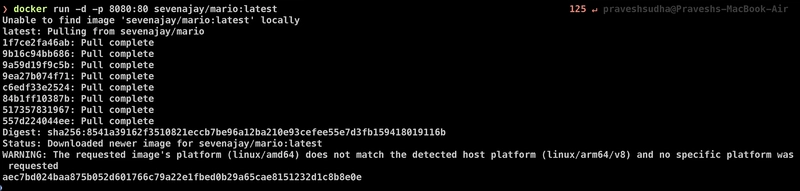
This command will:
- Pull the sevenajay/mario image from Docker Hub (if it’s not already on your system),
- Run it in detached mode (-d),
- And expose it on port 8080.
🌐 Step 2: Access the Game
Open your browser and go to:


You should see the Super Mario game interface pop up. Use the W, S, A, D keys to control Mario and explore the game.
Pretty cool, isn’t it? A childhood classic brought to life inside a Docker container!
Now that we know the application works as expected, it’s time to take it to the cloud.
🔧 Installing Required Tools (kubectl, AWS CLI, Terraform)
Now that we’ve tested the Super Mario game locally, it’s time to prepare our system for the cloud deployment phase. For this, we need to install a few essential tools that will help us interact with AWS and manage our Kubernetes infrastructure:
- kubectl – to manage Kubernetes clusters
- aws-cli – to interact with AWS services
- Terraform – to provision our EKS infrastructure using code
Let’s go through them one by one 👇
📦 Install kubectl (Linux – AMD64)
curl -LO "https://dl.k8s.io/release/$(curl -L -s https://dl.k8s.io/release/stable.txt)/bin/linux/amd64/kubectl"
sudo install -o root -g root -m 0755 kubectl /usr/local/bin/kubectl
kubectl version --client --output=yaml

This will download and install the latest stable version of kubectl.
☁️ Install AWS CLI (Linux – AMD64)
curl "https://awscli.amazonaws.com/awscli-exe-linux-x86_64.zip" -o "awscliv2.zip"
unzip awscliv2.zip
sudo ./aws/install
aws --version
which aws

🔐 Configure AWS Credentials
To provision resources on AWS, we need to set up a user with appropriate permissions:
- Go to your IAM Dashboard.
- Click on Users → Create User.

- Give it a name like mario.
- Under Permissions, select Attach policies directly.
- Choose the AdministratorAccess policy (to avoid permission-related issues).

- Complete the user creation process.
- Click on the newly created user, go to Security Credentials, and click Create Access Key.
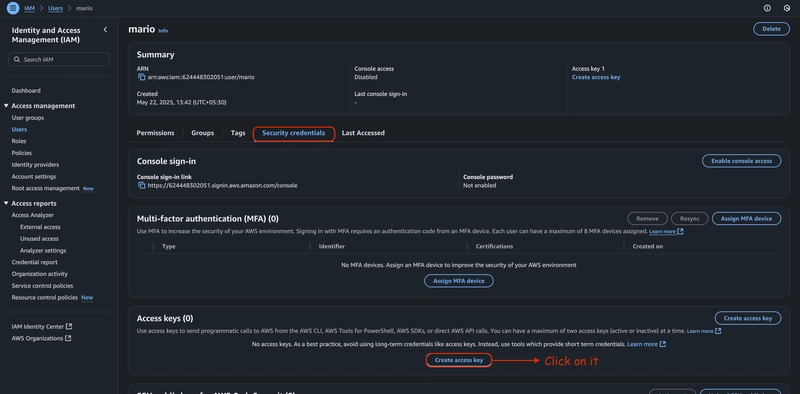
- Choose Command Line Interface as the use case and generate the keys.
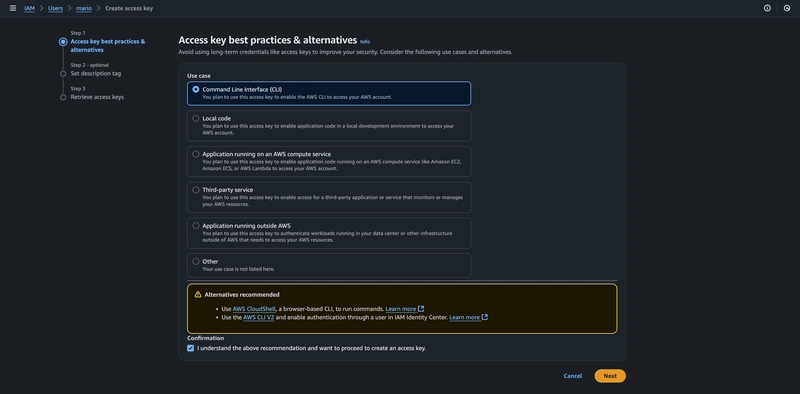

Now, back in your terminal:
aws configure
You’ll be prompted to enter:
- AWS Access Key ID
- AWS Secret Access Key
- Default Region (e.g., us-west-2)
- Output Format (you can leave it as json)

✅ You’re now authenticated and ready to interact with AWS from your terminal!
🛠️ Install Terraform
sudo apt-get update && sudo apt-get install -y wget gnupg software-properties-common
wget -O- https://apt.releases.hashicorp.com/gpg | \
gpg --dearmor | \
sudo tee /usr/share/keyrings/hashicorp-archive-keyring.gpg > /dev/null
sudo apt update && sudo apt install terraform -y
which terraform

This installs the latest stable version of Terraform from HashiCorp’s official repository.
📁 Setting Up Kubernetes Manifests and Terraform Files
With our environment ready and tools installed, it’s time to build the core of our infrastructure. We’ll define the Kubernetes manifests for our Super Mario application and write Terraform scripts to provision an Amazon EKS cluster.
Let’s break this down step-by-step 👇
🧱 Step 1: Set Up the Project Directory
Create a new directory named mario-game and move into it:
mkdir mario-game
cd mario-game/
📄 Step 2: Create Kubernetes Deployment and Service YAML
We'll create two files — deployment.yml and service.yml — to define our application deployment on Kubernetes.
✍️ deployment.yml
apiVersion: apps/v1
kind: Deployment
metadata:
name: mario-deployment
spec:
replicas: 2 # You can adjust the number of replicas as needed
selector:
matchLabels:
app: mario
template:
metadata:
labels:
app: mario
spec:
containers:
- name: mario-container
image: sevenajay/mario:latest
ports:
- containerPort: 80
✍️ service.yml
apiVersion: v1
kind: Service
metadata:
name: mario-service
spec:
type: LoadBalancer
selector:
app: mario
ports:
- protocol: TCP
port: 80
targetPort: 80
These files will help Kubernetes know how to run and expose the Super Mario game container in your cluster.
📂 Step 3: Create Terraform Configuration for EKS
Inside the mario-game directory, create a new subdirectory called terr-config:
mkdir terr-config
cd terr-config/
Now, let’s start defining our infrastructure as code.
🧾 provider.tf – AWS Provider Configuration
terraform {
required_providers {
aws = {
source = "hashicorp/aws"
version = "~> 5.0"
}
}
}
provider "aws" {
region = "us-east-1"
}
🪣 backend.tf – Remote Backend for Terraform State
terraform {
backend "s3" {
bucket = "pravesh-mario-bucket" # Change if bucket name is already taken
key = "EKS/terraform.tfstate"
region = "us-east-1"
}
}
💡 Tip: Make sure this bucket exists before you initialize Terraform. Create it using:
aws s3 mb s3://pravesh-mario-bucket

If the bucket name is taken, update it in the backend.tf file accordingly.
🧩 main.tf – EKS Cluster and Node Group Resources
This file contains the full configuration to:
- Create IAM roles
- Provision the EKS Cluster
- Set up Node Groups
- Attach required permissions
# IAM Role for EKS Control Plane
data "aws_iam_policy_document" "assume_role" {
statement {
effect = "Allow"
principals {
type = "Service"
identifiers = ["eks.amazonaws.com"]
}
actions = ["sts:AssumeRole"]
}
}
resource "aws_iam_role" "example" {
name = "eks-cluster-cloud"
assume_role_policy = data.aws_iam_policy_document.assume_role.json
}
resource "aws_iam_role_policy_attachment" "example-AmazonEKSClusterPolicy" {
policy_arn = "arn:aws:iam::aws
 olicy/AmazonEKSClusterPolicy"
role = aws_iam_role.example.name
}
# VPC and Subnet Configuration
data "aws_vpc" "default" {
default = true
}
data "aws_subnets" "public" {
filter {
name = "vpc-id"
values = [data.aws_vpc.default.id]
}
}
# EKS Cluster Resource
resource "aws_eks_cluster" "example" {
name = "EKS_CLOUD"
role_arn = aws_iam_role.example.arn
vpc_config {
subnet_ids = data.aws_subnets.public.ids
}
depends_on = [
aws_iam_role_policy_attachment.example-AmazonEKSClusterPolicy,
]
}
# IAM Role for Worker Nodes
resource "aws_iam_role" "example1" {
name = "eks-node-group-cloud"
assume_role_policy = jsonencode({
Statement = [{
Action = "sts:AssumeRole"
Effect = "Allow"
Principal = {
Service = "ec2.amazonaws.com"
}
}]
Version = "2012-10-17"
})
}
# Attach Worker Node Policies
resource "aws_iam_role_policy_attachment" "example-AmazonEKSWorkerNodePolicy" {
policy_arn = "arn:aws:iam::aws
olicy/AmazonEKSWorkerNodePolicy"role = aws_iam_role.example1.name
}
resource "aws_iam_role_policy_attachment" "example-AmazonEKS_CNI_Policy" {
policy_arn = "arn:aws:iam::aws
olicy/AmazonEKS_CNI_Policy"role = aws_iam_role.example1.name
}
resource "aws_iam_role_policy_attachment" "example-AmazonEC2ContainerRegistryReadOnly" {
policy_arn = "arn:aws:iam::aws
olicy/AmazonEC2ContainerRegistryReadOnly"role = aws_iam_role.example1.name
}
# Node Group Resource
resource "aws_eks_node_group" "example" {
cluster_name = aws_eks_cluster.example.name
node_group_name = "Node-cloud"
node_role_arn = aws_iam_role.example1.arn
subnet_ids = data.aws_subnets.public.ids
scaling_config {
desired_size = 1
max_size = 2
min_size = 1
}
instance_types = ["t2.medium"]
depends_on = [
aws_iam_role_policy_attachment.example-AmazonEKSWorkerNodePolicy,
aws_iam_role_policy_attachment.example-AmazonEKS_CNI_Policy,
aws_iam_role_policy_attachment.example-AmazonEC2ContainerRegistryReadOnly,
]
}
✅ Final Checklist Before Deploying
- Bucket created with aws s3 mb s3://your-bucket-name
- backend.tf has the correct bucket name
- Files are saved in their respective places
🚀 Deploying the Super Mario Game on EKS with Terraform & kubectl
Now that everything is configured, it's time to provision the infrastructure and launch our game! 🎮
🔧 Step 4: Provision EKS Infrastructure Using Terraform
Make sure you’re inside the terr-config directory before running these commands:
terraform init

This will initialize Terraform and download the necessary providers.
terraform plan
This command gives you a preview of the changes Terraform will make — like creating the EKS cluster, IAM roles, subnets, and node groups.
terraform apply --auto-approve

⏳ This will take around 10–15 minutes to provision all AWS resources. Sit back and let Terraform handle the heavy lifting.
🧭 Step 5: Configure kubectl to Use Your New EKS Cluster
Once the cluster is up and running, run the following command to update your kubeconfig:
aws eks update-kubeconfig --name EKS_CLOUD --region us-east-1
This ensures your local kubectl knows how to communicate with the EKS cluster.
📦 Step 6: Deploy the Super Mario Game
Head back to the main project directory:
cd ../ # Go back to the root mario-game directory
Apply the Kubernetes manifests:
kubectl apply -f deployment.yml
kubectl apply -f service.yml

This will deploy your containerized game and expose it via a LoadBalancer.
🌐 Step 7: Get the Game URL
Run the following to retrieve the external URL of your game:
kubectl describe service mario-service

Look for the LoadBalancer Ingress section in the output. Copy the external URL or IP address and paste it into your browser.
🎉 Congratulations! The Super Mario Game is now running on your very own Kubernetes cluster on AWS EKS!

🧹 Step 8: Clean Up (Avoid Unwanted AWS Charges)
Once you're done playing and showcasing your work, it’s best to destroy the resources to avoid unnecessary AWS billing.
Go back into your terr-config directory and run:
cd terr-config/
terraform destroy --auto-approve
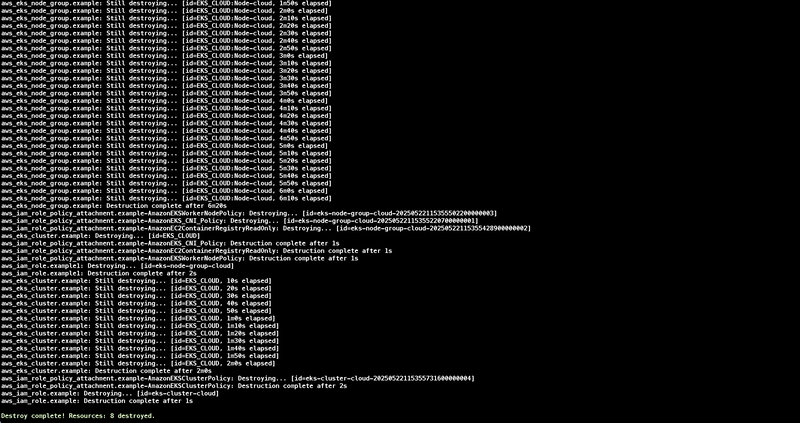
Terraform will clean up everything — the EKS cluster, IAM roles, subnets, node groups — all gone! 🧼
🎯 Conclusion
And that’s a wrap! 👏
I hope you found this project both fun and educational. Throughout this guide, you’ve walked through:
- Creating and configuring an IAM user
- Testing the Super Mario game locally using Docker
- Installing essential tools like kubectl, AWS CLI, and Terraform
- Provisioning cloud infrastructure on AWS using Terraform
- Deploying and accessing a game on Amazon EKS using Kubernetes
- Cleaning up cloud resources efficiently to avoid extra charges
Whether you’re just starting out in DevOps or looking to brush up on your Terraform and Kubernetes skills, this project was designed to make cloud-native concepts approachable and hands-on — with a nostalgic twist! 🍄🎮
If this blog helped you or sparked your interest, make sure to like it, share it with your network, and leave your thoughts in the comments. Your support truly means a lot!
📲 Stay Connected
Let’s learn and build together! You can find me on:
- 🐦 Twitter (X)
- ▶️ YouTube
Till then,
Happy Learning ☁️
Pravesh Sudha
Ciao! 👋
More...